Devices
In this section you can see all Akiles devices installed in your sites and check their status in real time. From here you will be able to quickly verify:
- The connection status of each device
- The power status of each device
- The battery level (in case of battery-powered devices) of each device
This section is designed for quick monitoring of device status and to facilitate the detection of any problems so you can take action before the Akiles system operation is affected.
Device list
This section displays all Akiles devices you have installed in the different sites configured in your organization. This allows you to have a global view of your entire installation regardless of how many sites (buildings), devices and gadgets (doors) you have. Below you will find all Akiles devices, their information and installation manuals.
| Akiles Device | Connectivity | Power | Preview | Manual | Part Number |
|---|---|---|---|---|---|
| Gateway | Ethernet Bluetooth 5 |
mains | 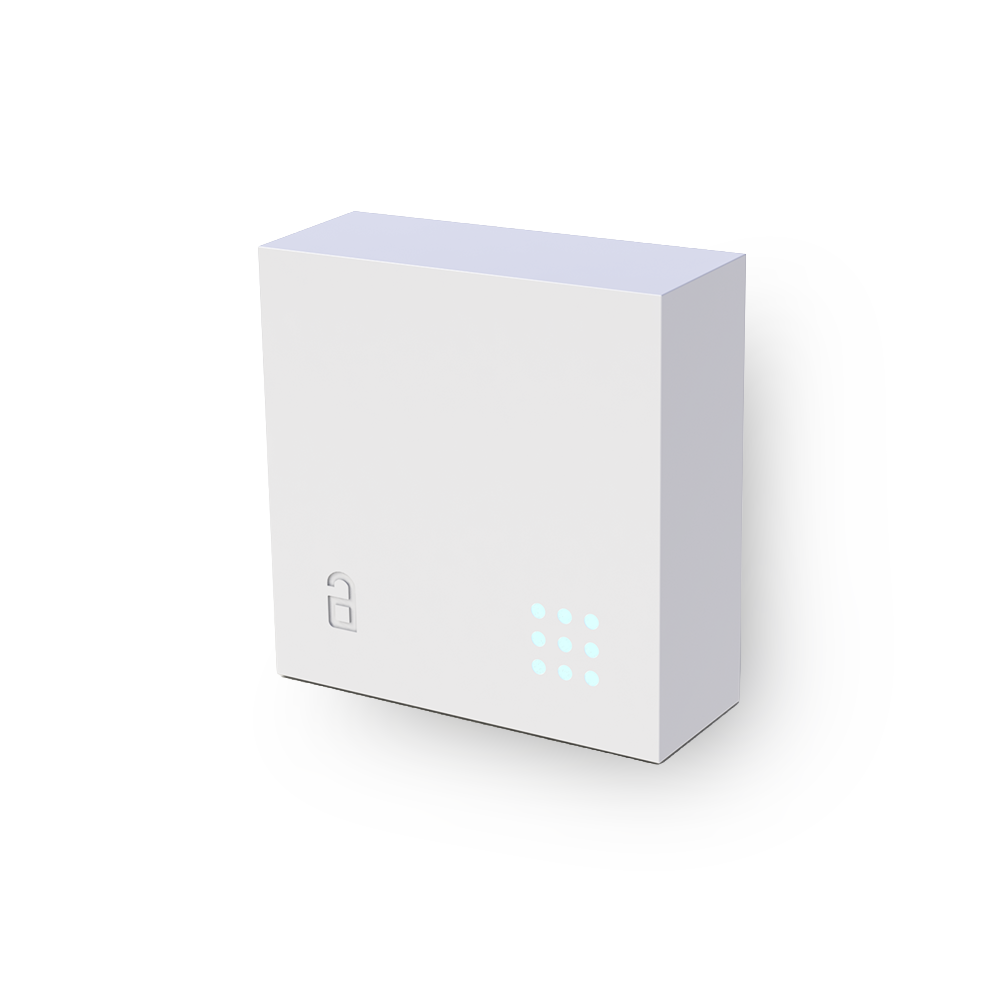 |
Installation Manual | 91.0111.01 |
| Gateway | Wi-Fi Bluetooth 5 |
mains | 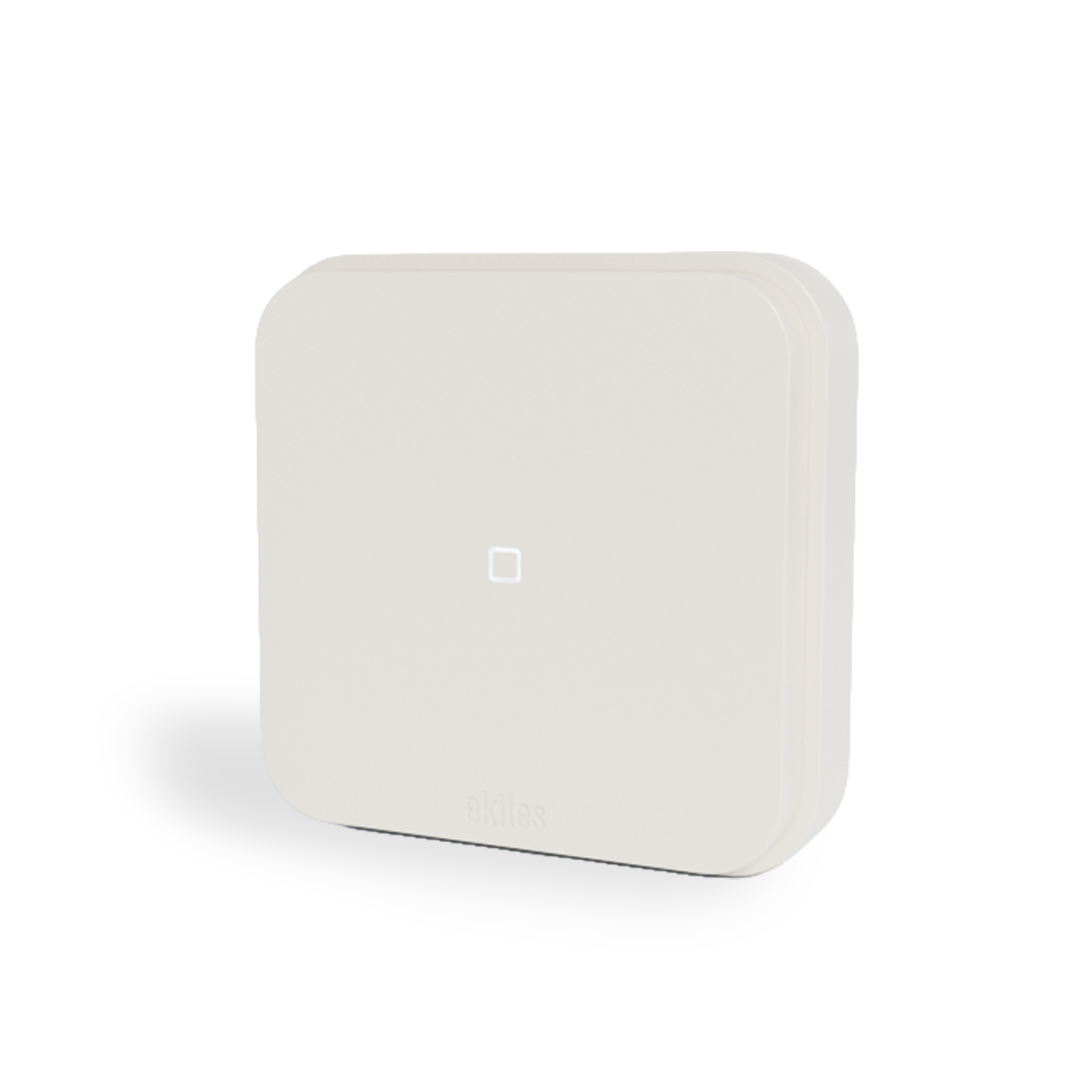 |
Installation Manual | 91.0117.01 |
| Controller | Bluetooth 5 | mains | 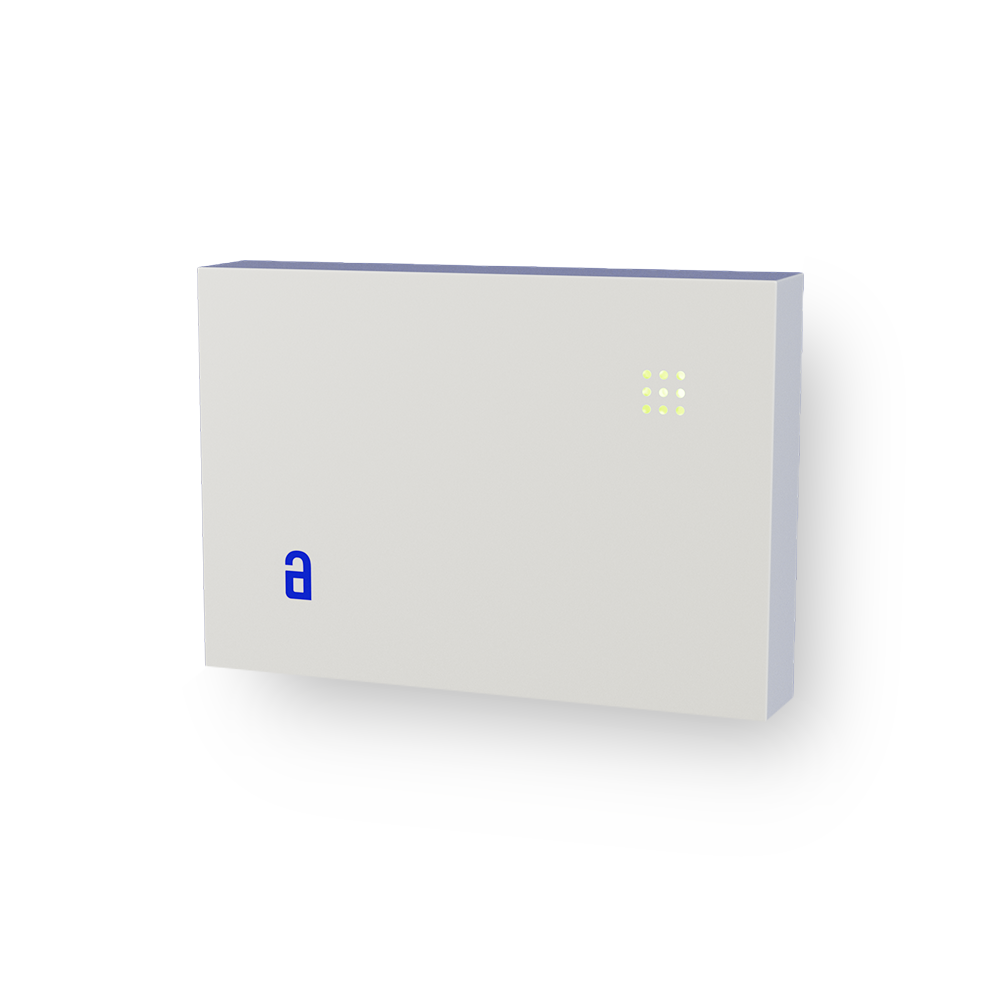 |
Installation Manual | 91.0101.01 |
| Controller+16 | Bluetooth 5 | mains | |
- | 91.0101.05 |
| Controller | Ethernet Bluetooth 5 |
mains | |
Installation Manual | 91.0101.03 |
| Controller | Wi-Fi Bluetooth 5 |
mains | |
Installation Manual | 91.0101.06 |
| Controller | Mobile Bluetooth 5 |
mains | |
Installation Manual | 91.0101.04 |
| Controller | Wi-Fi Bluetooth 5 |
mains and rechargeable battery | |
Installation Manual | 91.0113.01 |
| Controller | Mobile Bluetooth 5 |
mains and rechargeable battery | |
Installation Manual | 91.0112.01 |
| Pinpad | Bluetooth 5 | mains and AAA batteries | 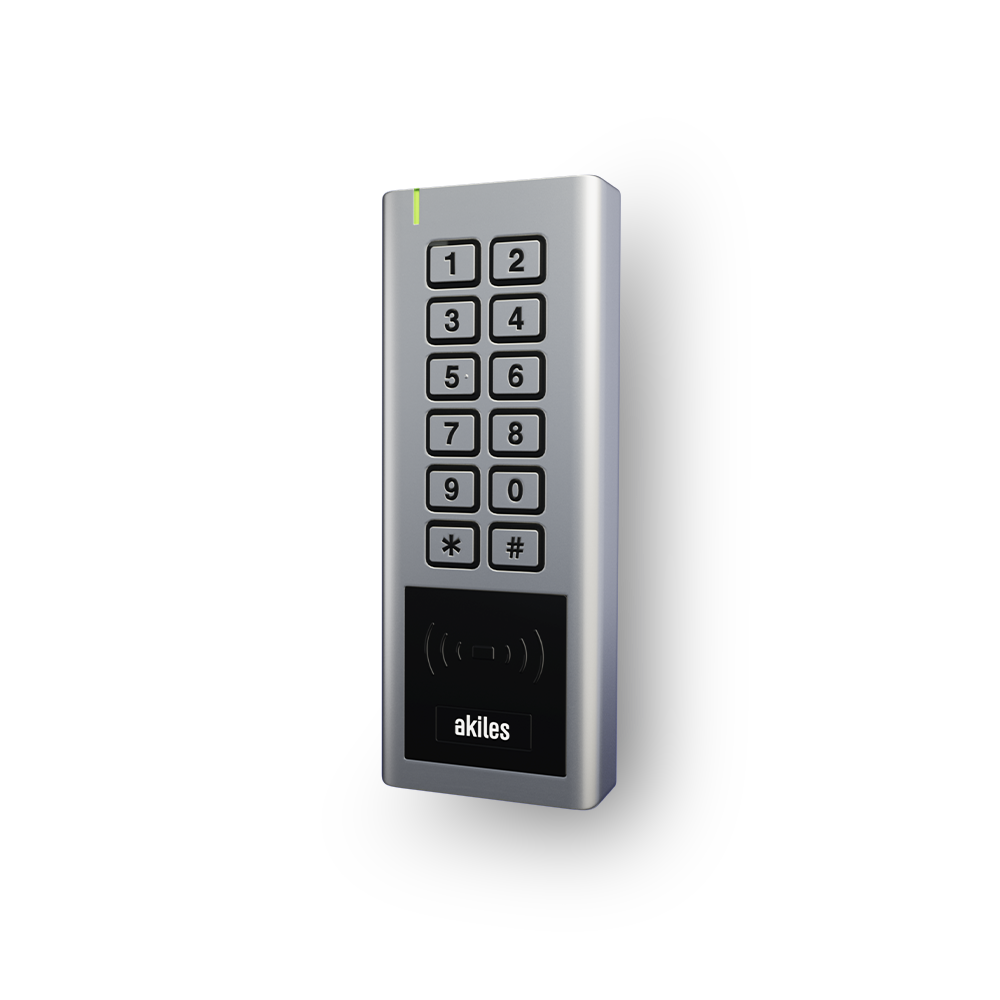 |
Installation Manual | 91.0501.01 |
| Cylinder | Bluetooth 5 | CR2 battery | 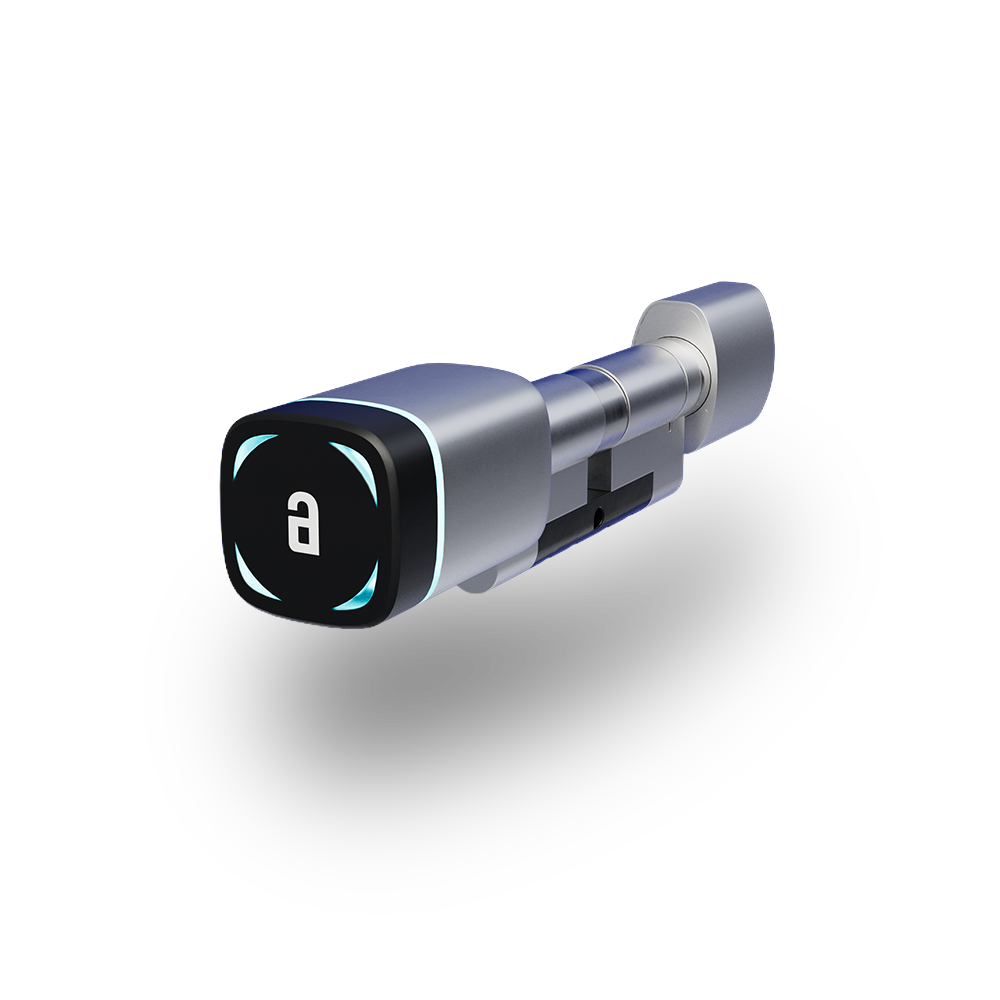 |
Installation Manual | 91.AABBCC.DD |
| Roomlock | Bluetooth 5 | AAA batteries | 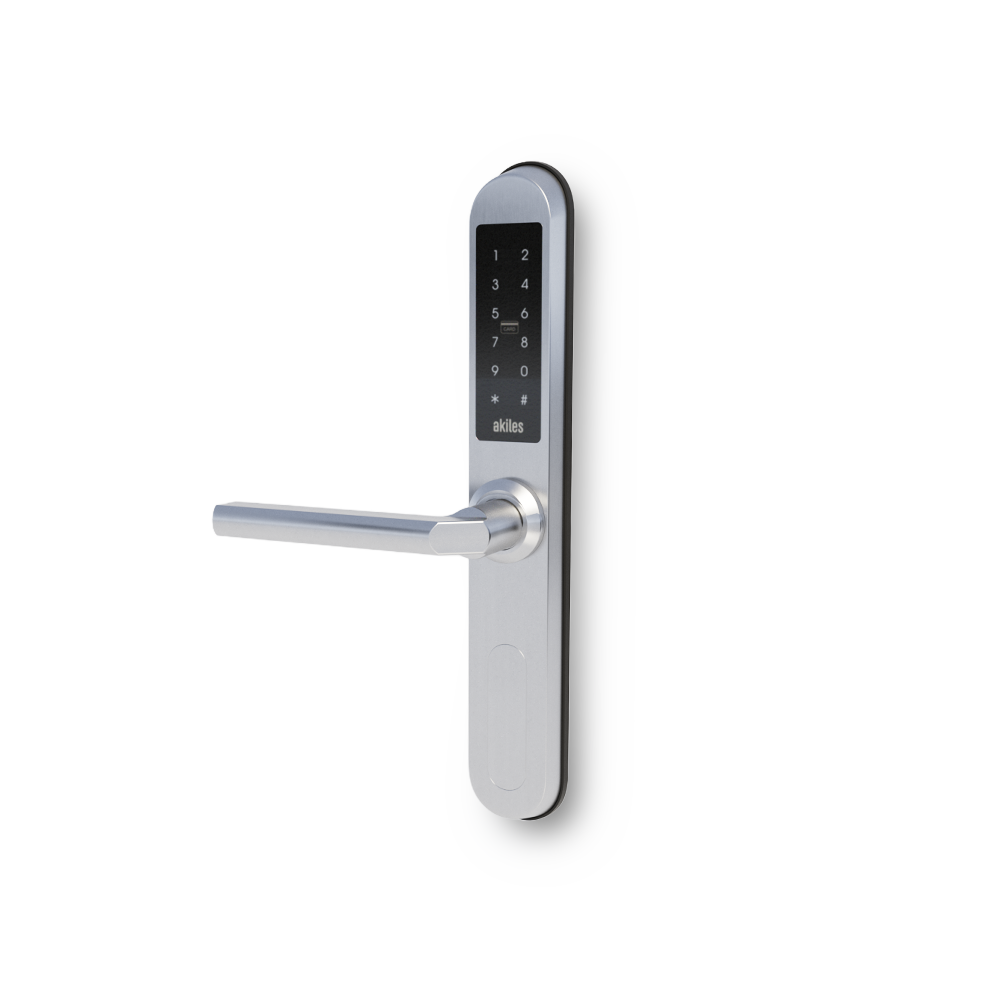 |
Installation Manual Drilling Template |
91.0401.DD |
Opening access from the Devices section
From this section, as an administrator, you will be able to act on the gadgets (doors) of each device. To do this, you only need to enter a device, go to the gadgets section within it and click on the gadget you want to act on.
Important: For security and proper audit purposes, the record of the opening will be logged and visible in the logs section.
Connectivity status
For each device you can see its connection status with the Akiles Cloud in real time. A device can appear as:
-
Online: The device is correctly connected to the Akiles Cloud and operating normally. A device being Online means 2 things:
-
You will be able to act on that device and on the gadgets (doors) controlled by that device, remotely.
-
Any access permission for a new member and any edit and/or revocation of an access permission for an existing member will have an immediate effect on the device that controls the gadgets (doors) affected by that user permission
-
-
Offline: The device has lost connection with the Akiles Cloud. When this happens, the system automatically generates an alert that you can check in the Alerts section. A device being Offline means 2 things:
-
You will not be able to act on that device and on the gadgets (doors) controlled by that device, remotely.
-
Any access permission for a new member and any edit and/or revocation of an existing user permission will not have an immediate effect on the device that controls the gadgets (doors) affected by that access permission until one of the following 2 things happens:
-
A member with access permission to one of the gadgets (doors) controlled by the Offline device opens it via Bluetooth (the Akiles App will update via Bluetooth the configuration pending to be updated).
-
An administrator of the Akiles organization updates the Offline device via Bluetooth.
-
-
Power status
You can also see how each device is powered. In Akiles we have several devices and, depending on the nature of each one, they can be powered in several ways. An Akiles device can be powered by:
- Mains power: The device is connected to the electrical supply and if there is a power outage the device will turn off.
- Batteries: The device runs on batteries and therefore will remain on even if there are power supply outages. The system will display the remaining battery percentage. When the battery level drops below 20%, the system automatically generates an alert in the Alerts section, so you can replace them before they run out.
- Mains power and batteries: The device is connected to the electrical supply and if there is a power outage the device will run on batteries. The system will display the remaining battery percentage. When the battery level drops below 20%, the system automatically generates an alert in the Alerts section, so you can replace them before they run out.
- Mains power and rechargeable battery: The device is connected to the electrical supply and if there is a power outage the device will operate thanks to the existing rechargeable battery. The system will display the remaining battery percentage. When the battery level drops below 20%, the system automatically generates an alert in the Alerts section so you can hurry to restore the power supply that will allow you to recharge it.