Gateway Wi-Fi - Installation Manual
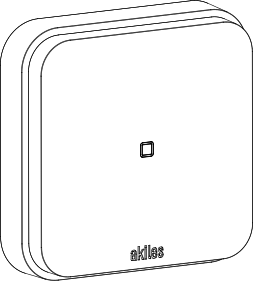
Description
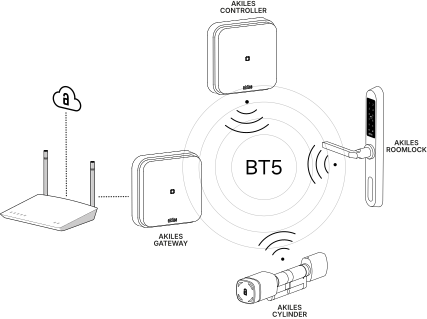
Akiles Gateway Wi-Fi is a device that connects to Akiles Cloud through the space’s Wi-Fi network, designed to:
- Connect other Akiles devices to Akiles Cloud
- Read the status of wireless Akiles sensors (Akiles Frame) and wired sensors (contact, presence, infrared, or temperature sensors)
Key features
- A compact device with extended BLE range, enabling the transmission of more information over a greater distance than traditional BT.
Box Contents
| Item | Preview |
|---|---|
| x1 Akiles Gateway Wi-Fi | 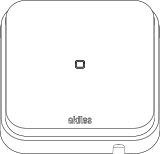 |
| x1 Security key |  |
| x1 Opening tool |  |
| x2 Wall anchors (for 6 mm drill bit) | 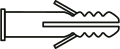 |
| x2 Self-tapping screws |  |
| x1 Security fixing screw |  |
Composition
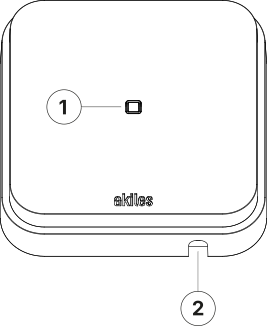
- 1. RGBW LED (status)
- 2. Cable pass-through hole
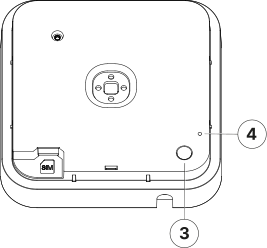
- 3. Security screw hole
- 4. Reset (factory defaults)
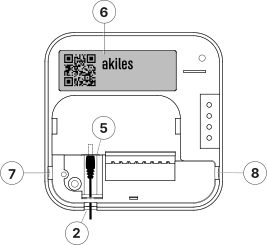
- 5. Power jack (5.5 x 2.1 mm)
- 6. Label with serial number
- 7. Cable pass-through hole (practicable)
- 8. Cable pass-through hole (practicable)
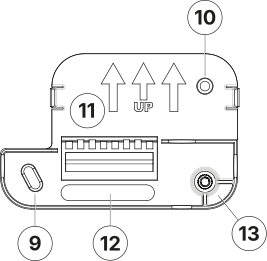
- 9. Wall anchor hole
- 10. Wall anchor hole
- 11. Wall plate orientation (upward)
- 12. Cable pass-through hole
- 13. Security screw insert
Technical Specifications
| Characteristic | Specification |
|---|---|
| Mounting | Standalone/Wall (optional) Surface wall installation using wall plate with security screw |
| Color | White RAL 9003 |
| Signaling | 1 light indicator (RGBW LED) |
| Power supply | 12 Vac/dc & 24 Vdc (± 15%) / 1.5 A (Jack 5.5 x 2.1 mm) |
| Maximum consumption | < 1 W |
| Connectivity | BT (5.0, 4.x) Wi-Fi (IEEE 802.11 b/g/n) |
| Firmware updates | Over-the-Air (OTA) |
| Materials | ABS V0 and PC |
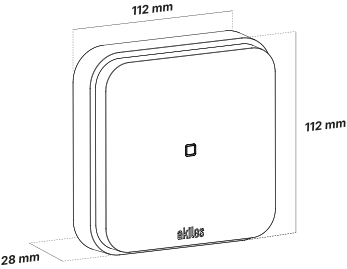
| Dimensions | 112 x 112 x 28 mm |
| Weight | 170 g |
| Temperature range | 0..+45ºC |
| Humidity range | 10..90% (non-condensing) |
| IP rating | IP20 (indoor use only) |
Light Indicator Signals (RGBW LED)
Device Operating Correctly
| Color | Blinking | Meaning |
|---|---|---|
| White | No | Started, everything OK |
Device Startup Type
| Color | Blinking | Meaning |
|---|---|---|
| Red | No | Restart |
| Red | Fast | Restoring factory defaults |
Internet Connection Issues
| Color | Blinking | Meaning |
|---|---|---|
| Purple | 1 | Wi-Fi network not found or incorrect password |
| Purple | 2 | Wi-Fi ok, DHCP error |
| Purple | 3 | Wi-Fi ok, DHCP ok, DNS error |
| Purple | 4 | Wi-Fi ok, DHCP ok, DNS ok, connection error |
BT Connection Issues
| Color | Blinking | Meaning |
|---|---|---|
| Yellow | 1 | No connection received |
| Yellow | 2 | No connection with Controllers / Cylinders / Roomlocks / Pinpads |
Dimensions
Connections
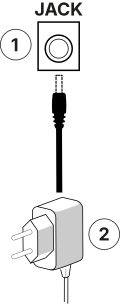
- 1. Input for power supply: 12 Vac/dc & 24 Vdc (±15%) / 1.5 A
- 2. Power supply: 12 Vac/dc & 24 Vdc (±15%) / 1.5 A
Considerations Before Installation
Consideration 1: The recommended maximum distance between the router or the AP generating the Wi-Fi signal and the Akiles Gateway Wi-Fi device is 15 m. It is important to take into account that walls and large objects in between may negatively affect the communication range between both devices.
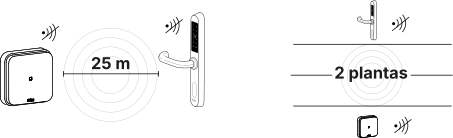
Consideration 2: If the Akiles Gateway Wi-Fi device needs to provide coverage to other Akiles devices via BT, the distance between them should not exceed 25 m on the same floor, nor should the devices be separated by more than 2 floors, in order to ensure proper wireless coverage.
Consideration 3: Once the device is installed and properly configured, it is recommended to wait 3 to 5 minutes to allow the device to start correctly, connect to our server, and successfully download the latest available firmware version.
Consideration 4: It is strongly recommended that the installation of this device be carried out by an authorized Akiles electrical installer.
Device Installation
- Fix the wall plate in the desired location.
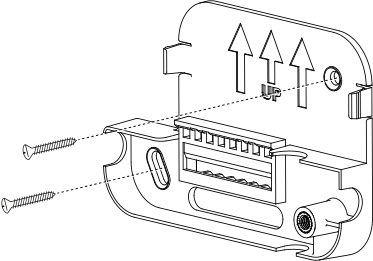
- Make the necessary connections on the device (power supply).
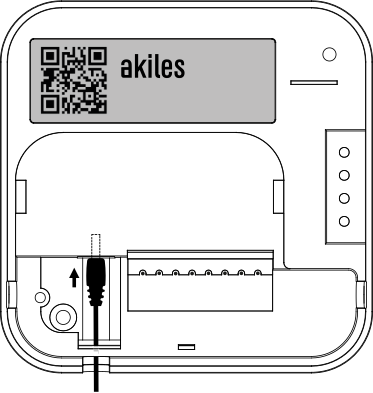
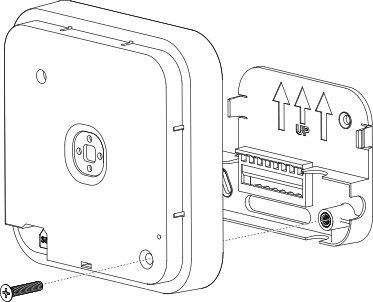
- Insert the device into the wall plate. In the wall plate there is a metal threaded insert (13). To fix the device to the wall, insert the supplied security screw into the hole marked as (3), so that the assembly is firmly anchored to the wall.
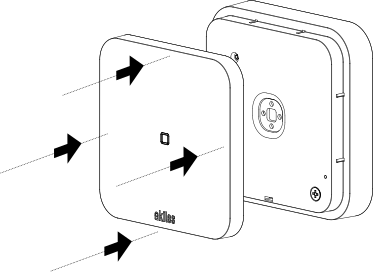
- Verify correct orientation. The front cover must be inserted so that the Akiles logo is readable.
Wi-Fi Network Settings
The procedure for configuring the Wi-Fi network on the device, which must have been previously registered in the administration panel, is as follows:
1. Use your mobile phone to create a hotspot named “AkilesSetup” with the password “GoToTheCloud”.
Enable the option to share your internet connection via Wi-Fi on your phone. The exact location of this setting in your phone’s configuration depends on the operating system version and the manufacturer’s customization layer.
Android example:
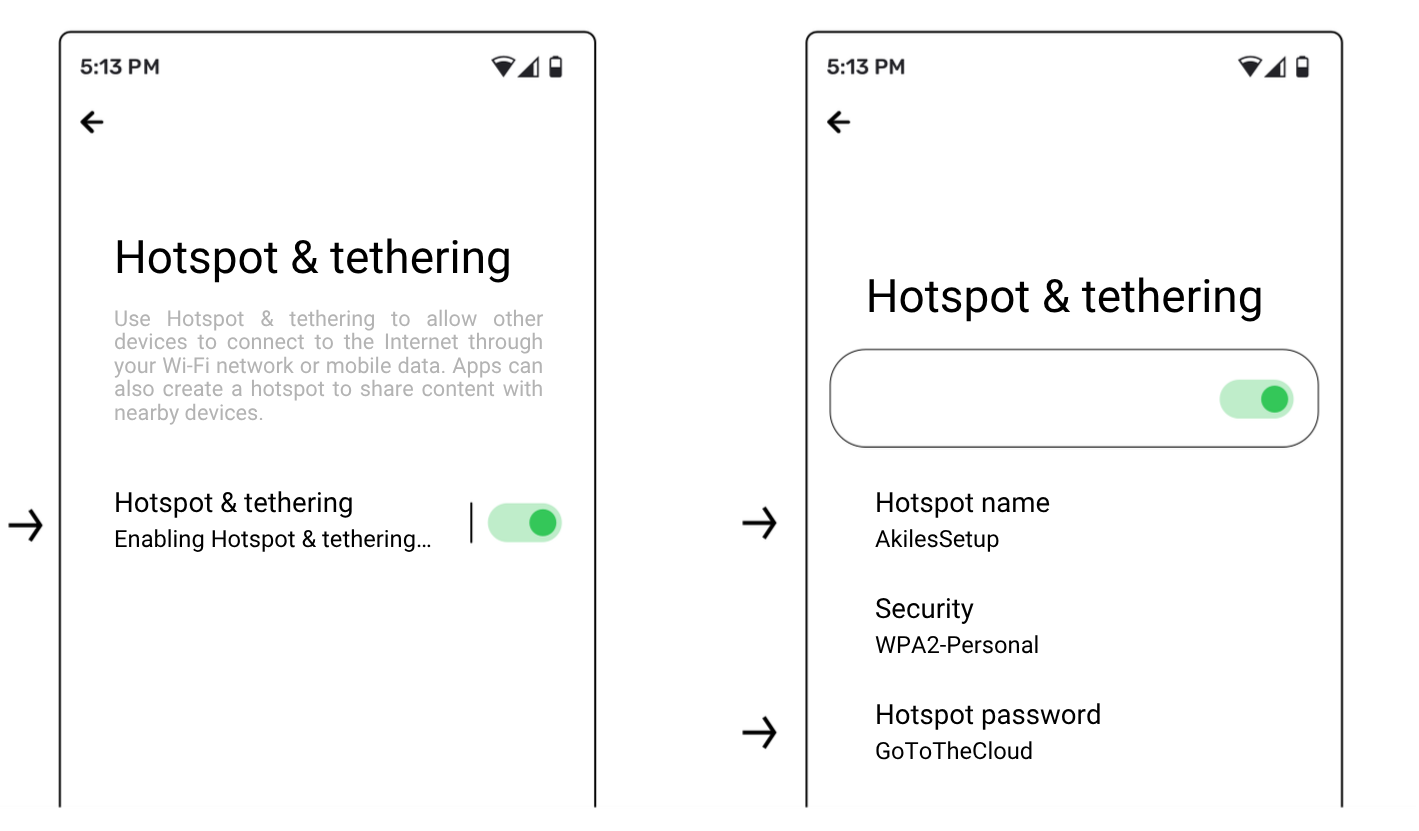
Go to Settings > Network & Internet > Enable “Hotspot & tethering” > Tap “Hotspot & tethering” > Set the hotspot name to “AkilesSetup” > Set the hotspot password to “GoToTheCloud”.
iOS example:

- Go to Settings > General > About > Name > Change it to “AkilesSetup”.
- Go to Settings > Personal Hotspot > Turn on “Allow Others to Join” > Set the Wi-Fi Password to “GoToTheCloud”.
Once this process is completed, the Akiles Gateway Wi-Fi will automatically connect to the network provided by your phone.
2. After powering on the Akiles Gateway Wi-Fi, the status LED should be solid white (no blinking). If this is not the case, check and repeat the previous step.
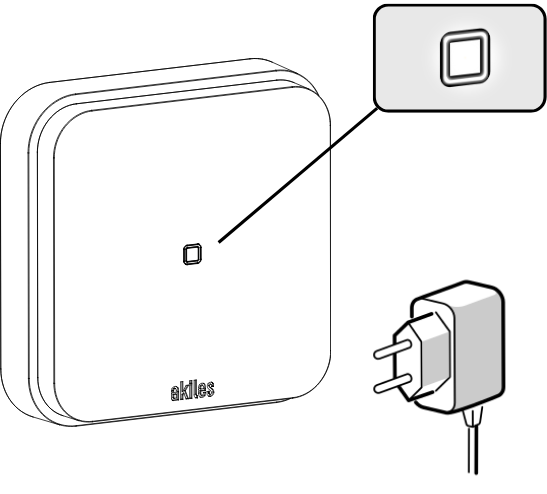
3. In the administration panel, go to your organization’s Locations tab and select the device location. Click the “Wi-Fi Networks” button.
4. Enter the name (network identifier or SSID) and password of the space’s Wi-Fi network. To finish, click the “Create” button.
5. Wait until the Gateway Wi-Fi appears as configured in the Devices tab of the administration panel, in Online status rather than “Configuration pending”.
6. Disable the hotspot on your mobile phone, stopping Internet sharing.
7. The Akiles Gateway Wi-Fi status LED should appear purple and blink for a few seconds while connecting to the Wi-Fi network. Once connected, the LED will remain solid white and the device will be ready for operation.
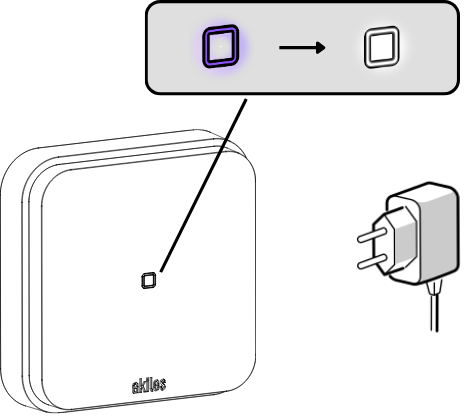
For security reasons, once the device has connected to the site’s Wi-Fi network, it will no longer connect to an access point using the default credentials (“AkilesSetup”/“GoToTheCloud”). To do so, the device must be reset to factory settings and the previously described process must be repeated.
If you perform a factory reset on your wireless router or change the Wi-Fi network password, the Gateway Wi-Fi will not be able to connect to the Akiles Cloud. For this reason, any changes must be anticipated and the new credentials (SSID and password) must be entered in the administration panel (“Locations” tab → Device location → “Wi-Fi Networks”).
Legal Information
Information on the Product’s Wireless Characteristics
BT5/BT4 frequencies (communication with user smartphone): 2400–2483.5 MHz (Max. 10 dBm)
Akiles proprietary protocol frequencies (communication between devices): 2400–2483.5 MHz (Max. 20 dBm)
Wi-Fi frequencies: 2400–2483.5 MHz (Max. 18 dBm)
Radio Frequency Exposure Information (Maximum Permitted Exposure)
This device complies with EU requirements on limiting public exposure to electromagnetic fields in order to protect health. To comply with radio frequency exposure requirements, the equipment must be used at a minimum distance of 20 cm from the user.
Standards and Certifications


The WEEE symbol (Waste Electrical and Electronic Equipment) indicates that this device and its batteries (if included) must not be disposed of with other household waste.
When the product reaches the end of its useful life, take it to a local waste collection point for safe disposal or recycling.
This product complies with the provisions of the European Radio Equipment Directive (2014/53/EU).
This product also meets the essential requirements of Directive 2011/65/EU (RoHS 2), 2012/19/EU (WEEE), and Regulation (EU) No. 1907/2006 (REACH).
Safety Information
⚠ Read the following recommendations carefully before installing or using the equipment.
Akiles Technologies S.L. is not responsible for damages resulting from improper use, incorrect installation, or failure to comply with the safety recommendations indicated in this manual.
Intended use
- This product is designed exclusively for indoor use:
- Do not use outdoors or in humid environments (max. 90% RH).
- Do not expose to liquids, splashes, or condensation.
Environmental conditions
- Use the device only within the temperature range specified by the manufacturer (0–+45 °C).
- Do not install the equipment near radiators, heaters, or other heat sources. Do not expose the device to direct sunlight for prolonged periods.
- Ensure adequate ventilation around the equipment. Do not cover the device or obstruct the rear ventilation slots.
Handling
- The user must not dismantle, manipulate, open, or modify the device under any circumstances.
Power supply
- Preferably use the power supply recommended by Akiles, or otherwise use a power supply that complies with the voltage and current values specified in this document.
Storage
- Store the device in a cool, dry place, protected from direct sunlight.
Product recycling
- Do not dispose of in household waste. The product and its battery must be taken to an authorized recycling point in accordance with applicable regulations on electrical and electronic waste.