PIN Code
Our Akiles Roomlock and Akiles Pinpad devices (the latter alone or in combination with Akiles Cylinder) allow opening through the PIN code method.
PIN Code Configuration
To configure a PIN code for a user, you must enter the “Members” tab in the Administration Panel and select the member you want to generate it for. Inside, in the “Pins” section, select +Add a pin and choose a number. You can also generate a random one by clicking on “Create a random PIN”.
Each organization decides how long its PIN codes are, in the “Settings” tab of the Administration Panel. A PIN can have from 4 to 20 digits. We recommend that you give all your PIN codes the same length (see “Opening with PIN Code” below).
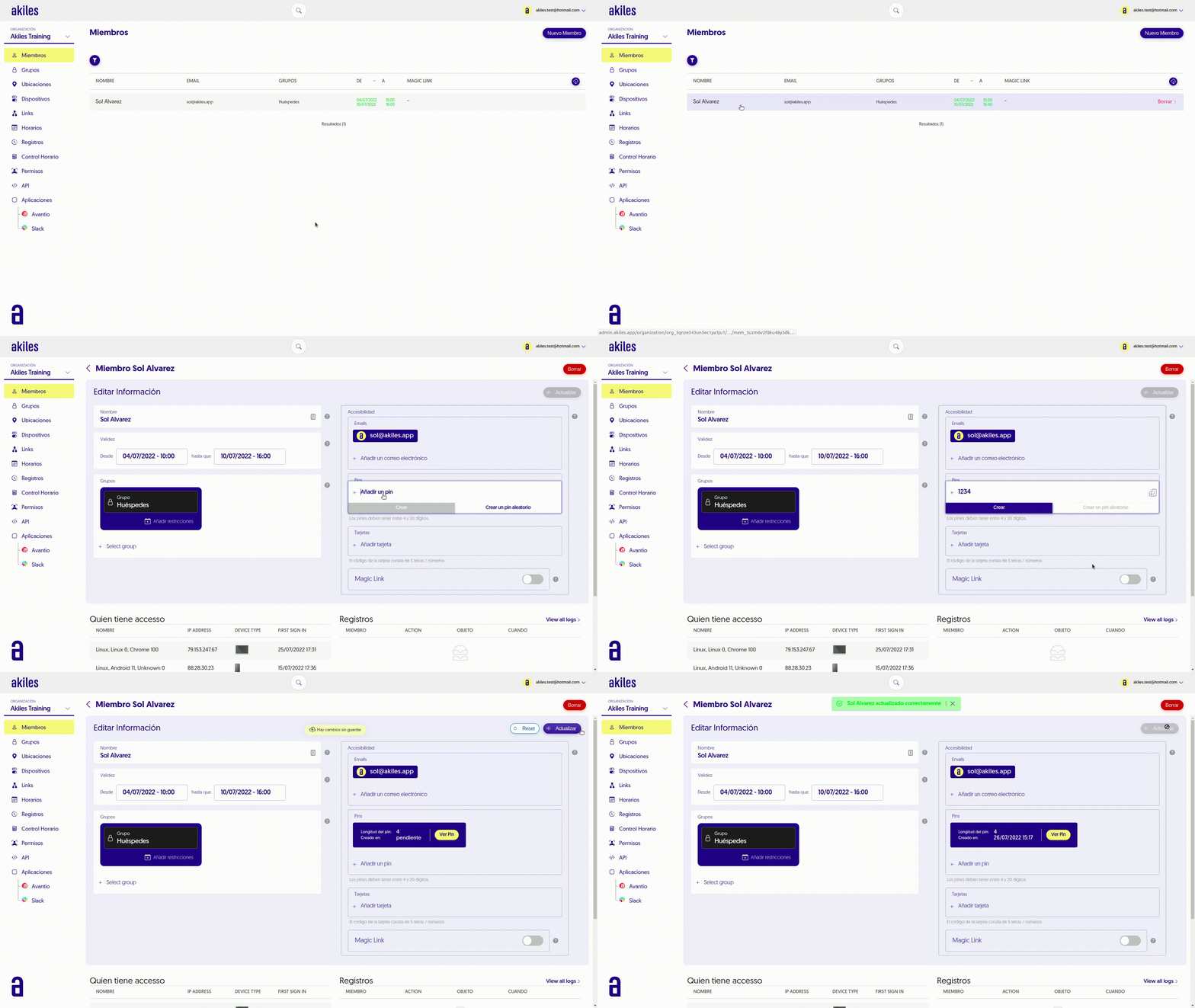
It is important to note that Akiles PIN codes are personal. This means that each member has their own exclusive PIN code, and that two members of the same organization will never share the same PIN code. This allows for traceability of access made with PIN by each member from the “Logs” section.
Keep in mind that, for the PIN to be configured on a device, it must be online (with internet connection). Once this is done, the code can be used to open even when the device is offline (without internet access).
PIN Code Consultation
Once a PIN code is configured for a user, they will be able to consult it from the Akiles app.
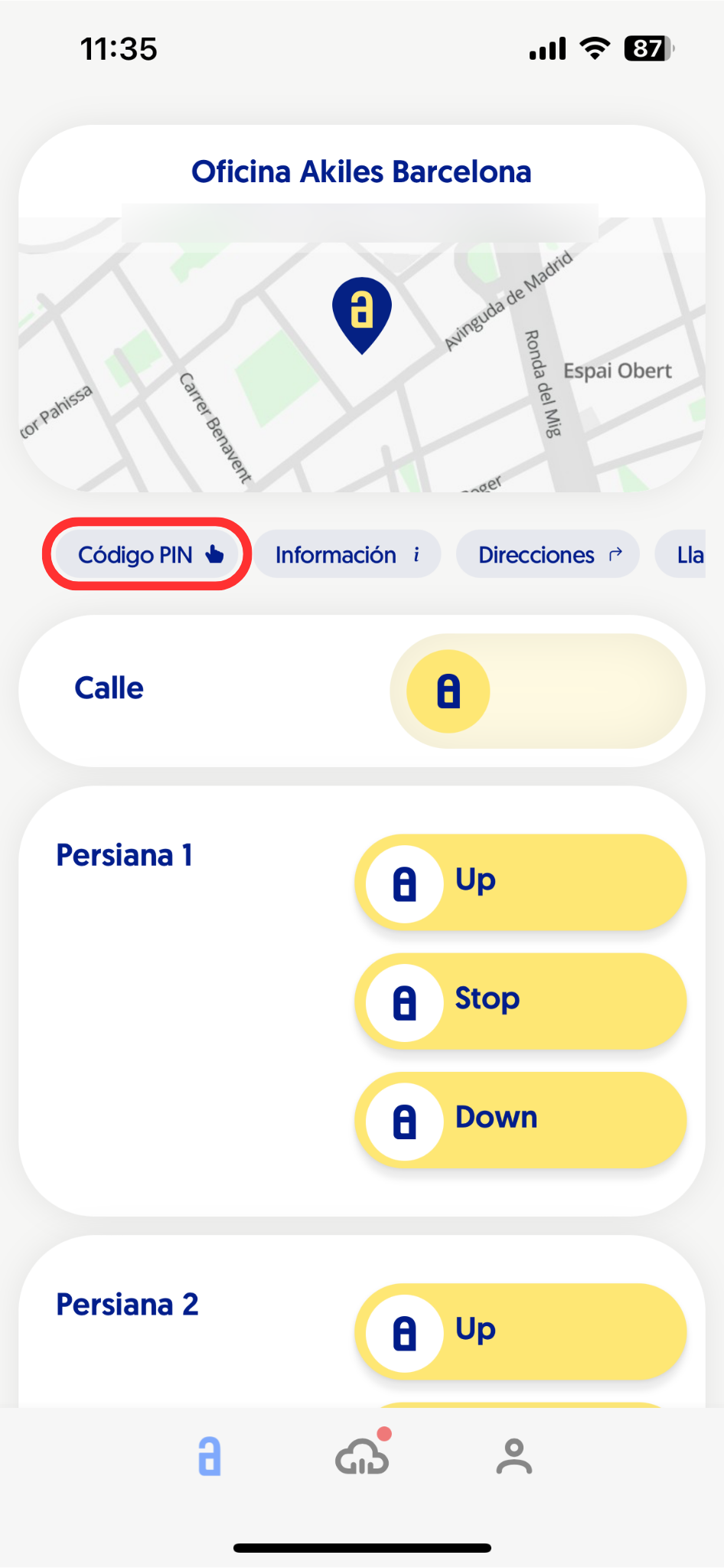
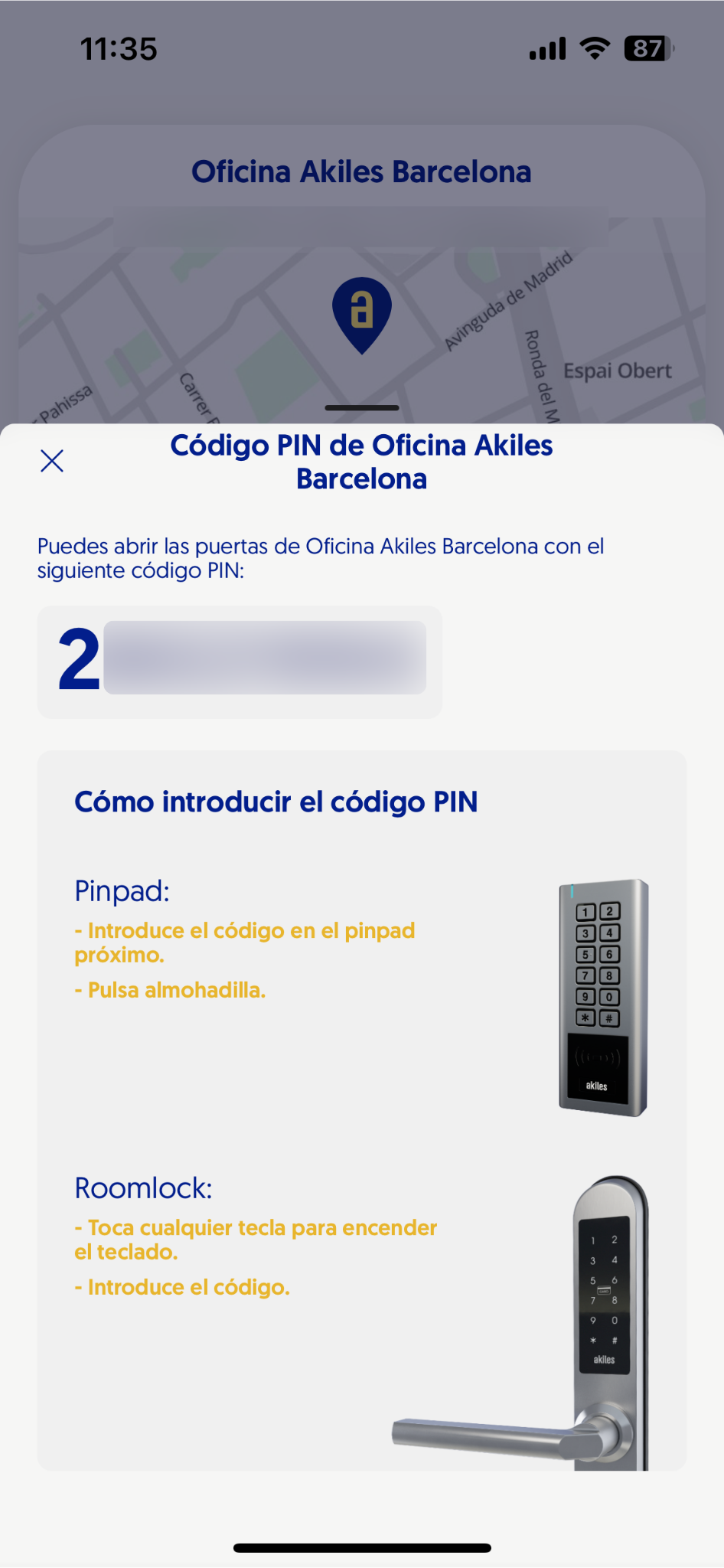
To do this, they only need to click on the “PIN Code” button that appears on the Home screen below the location map. Next, a dropdown will open showing the assigned numeric code, accompanied by instructions on how to enter it in the devices they have access to.
Opening with PIN Code
To open Akiles devices with a PIN code, follow these steps.
Keep in mind that, in organizations with different PIN lengths (for example, with some PINs of 4 and others of 6 digits), users with shorter PIN codes will be asked to press the hash key (#) after entering the code:
-
Roomlock/Pinpad: Simply touch the corresponding digits on the numeric keypad until you hear the beep and open normally.
-
Akiles Cylinder: This device is usually installed in combination with Akiles Pinpad to add the PIN code to its access methods. Additionally, the PIN code is an offline method, which allows access even without internet in the building or mobile data on the user’s part. To enter, you only need to enter the PIN code on the Akiles Pinpad device. If the code is correct, Akiles Cylinder will perform a visual and acoustic confirmation (light flashing and “beep”), and the opening can be performed.