[Q4 2023] Check why a device appears as 'disconnected' in the 'Alerts' section of the Admin Panel
Now administrators can check why a device appears as “disconnected” in the “Alerts” section of the Admin Panel.
To do this, you should click on the “Device disconnected” notification. Then, a screen will open that visually shows where in the device’s connection path the problem is located, and will offer specific instructions on how to solve it.
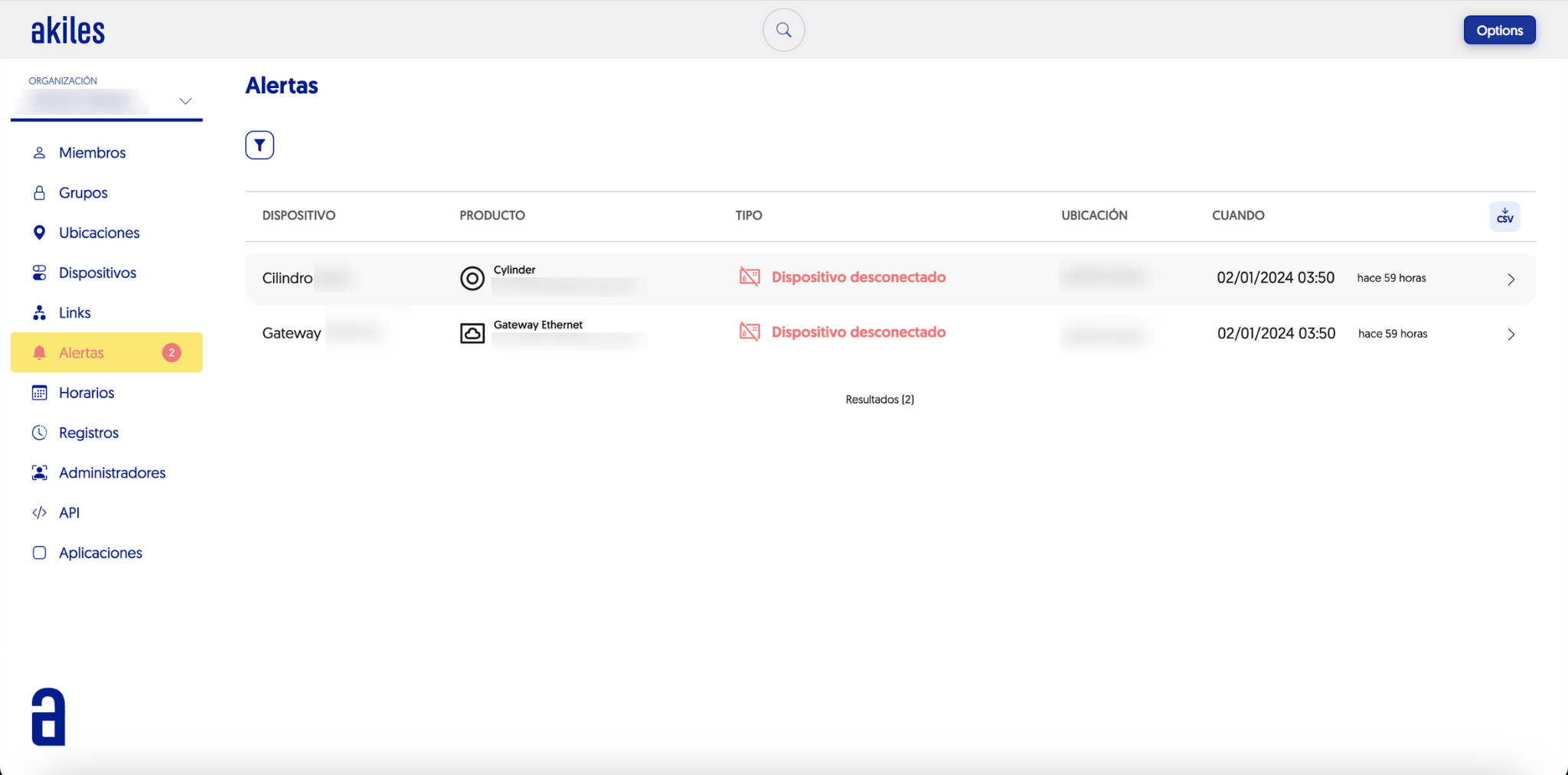
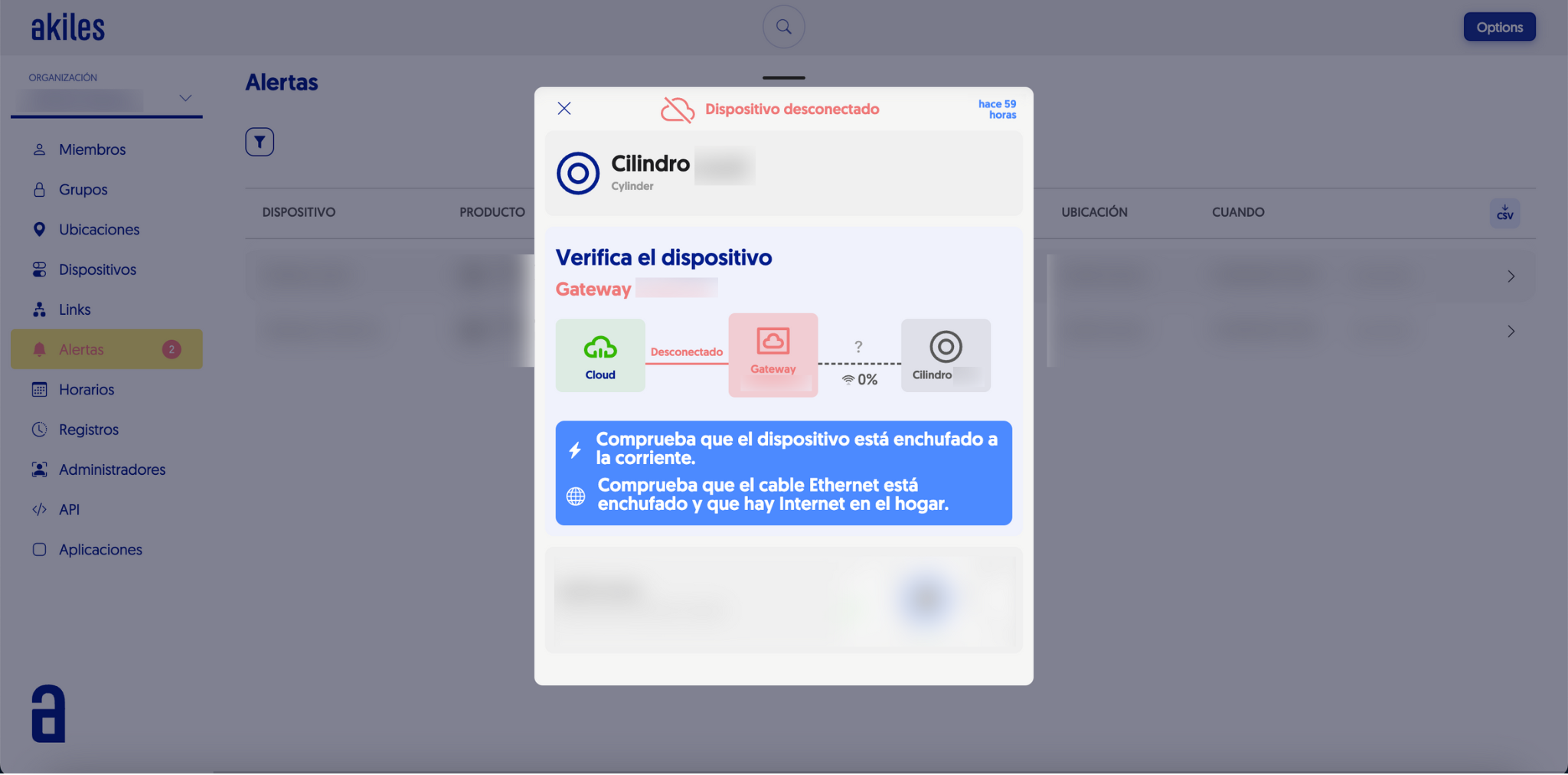
In the previous case, for example, when clicking on the “Device disconnected” alert for the Cylinder device, a modal opens that requests verification of the Gateway device (the device that sends the opening command to the Cylinder), which apparently is disconnected from the Akiles Cloud.
With this context, some instructions are provided to solve the problem: check that the device is plugged into power, that the Ethernet cable is connected, and that there is Internet in the home.