[Q2 2025] New Cards section: get visibility of the cards available in your organization and check who they are assigned to
Now, from the “Cards” section, located in the side menu of the Admin Panel, you can view all the cards you have in use in your organization, being able to easily check whether they are assigned or not to any member.
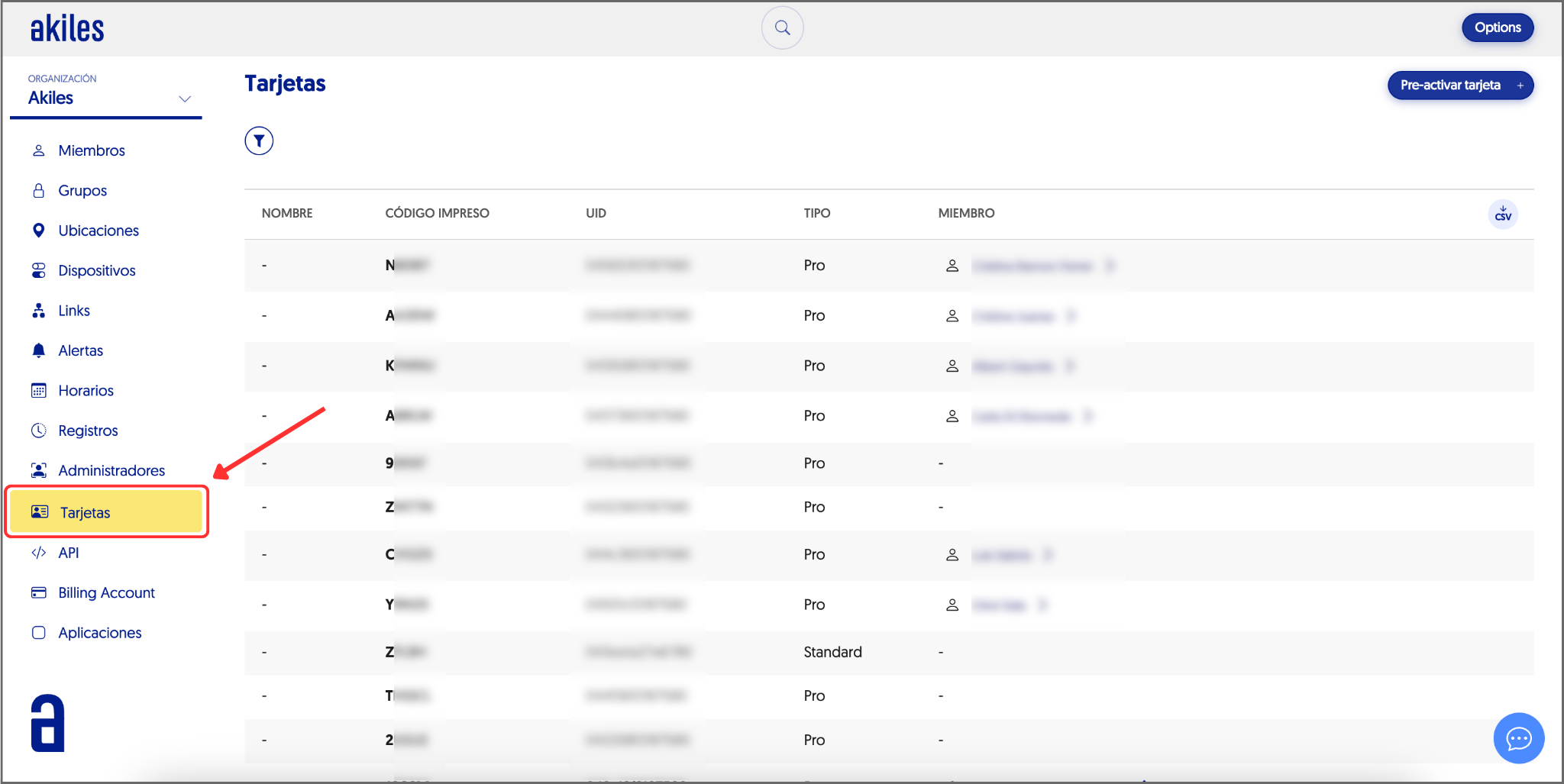
When you assign a card to a member from the Members section, it will automatically appear in this section, giving you visibility about the cards assigned to members in your organization. Similarly, when it is no longer linked to the member in question, it will continue to appear in this section but without being assigned to anyone.
In this section you can also name the cards (for example, Apartment 2B or Room 15), with the goal of helping to locate them better.
Additionally, from this section you can pre-activate all your cards to have from the beginning a complete view of all the cards available in your organization.
If you want to pre-activate all your cards from this section, we recommend doing it via mobile, since, [as we explained in this other article, scanning the cards via Mobile NFC from the app will save you the 15 seconds of recording on their first use.
To pre-activate cards via Mobile NFC from the app, you should click on “Actions” > “Touch a Card” and then scan it by bringing it close to the back of the phone.
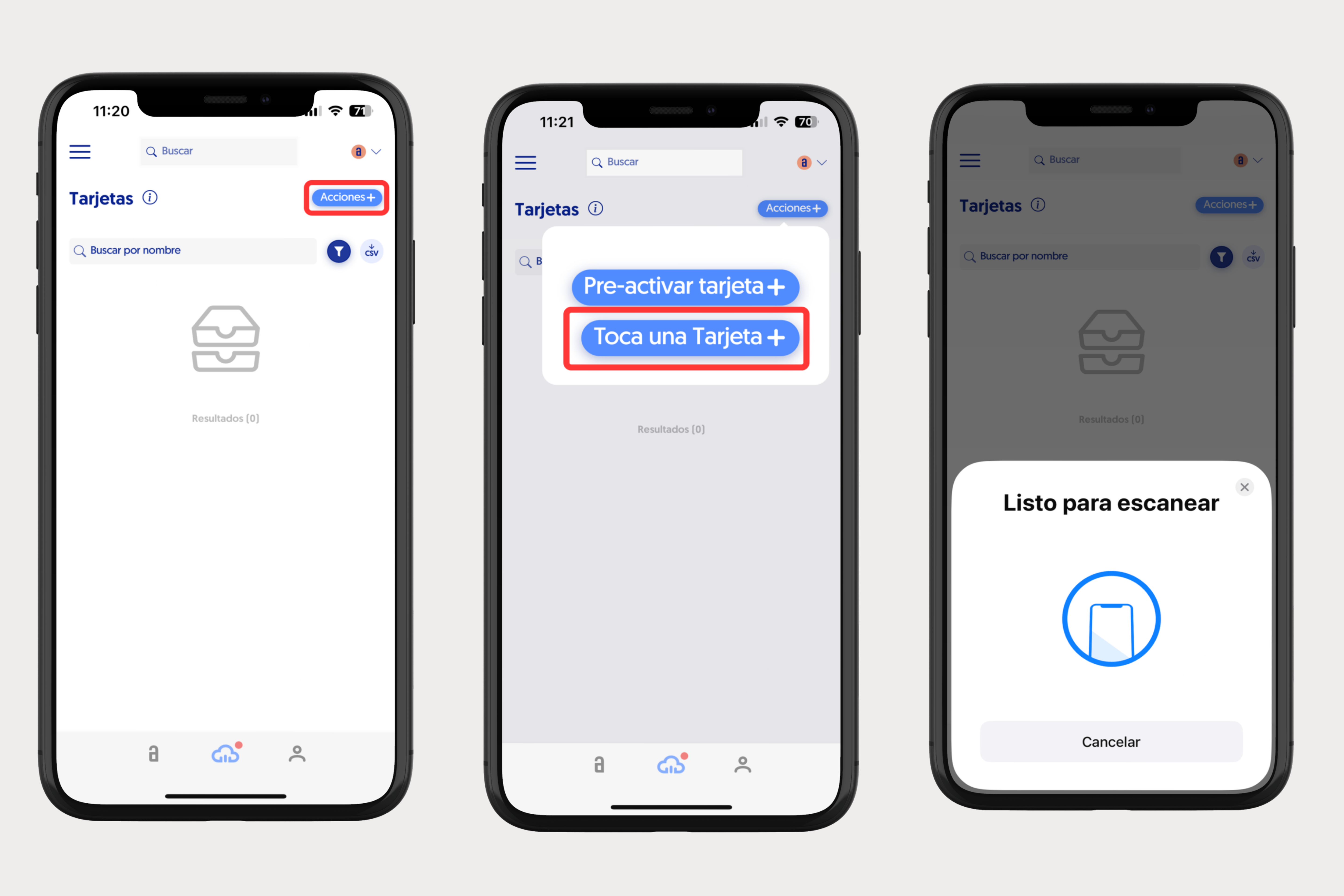
Once the cards are pre-activated through this scanning, you must assign them to members from the Members section.
This time, however, even if you decide to manually enter the card code (you can also scan it via Mobile NFC), you won’t have to wait the 15 seconds of recording on its first use, since the system will automatically recognize the card pre-activated through Mobile NFC scanning with the Akiles app.