[Q2 2024] Changes in the Devices section: Gadgets, Granted Permissions and more
Multiple changes have been introduced in the “Devices” section to provide more information and better structured data about the devices and gadgets that an organization has.
In the general view of the section, you can now see both the Devices that an organization has installed and the Gadgets that each device controls.
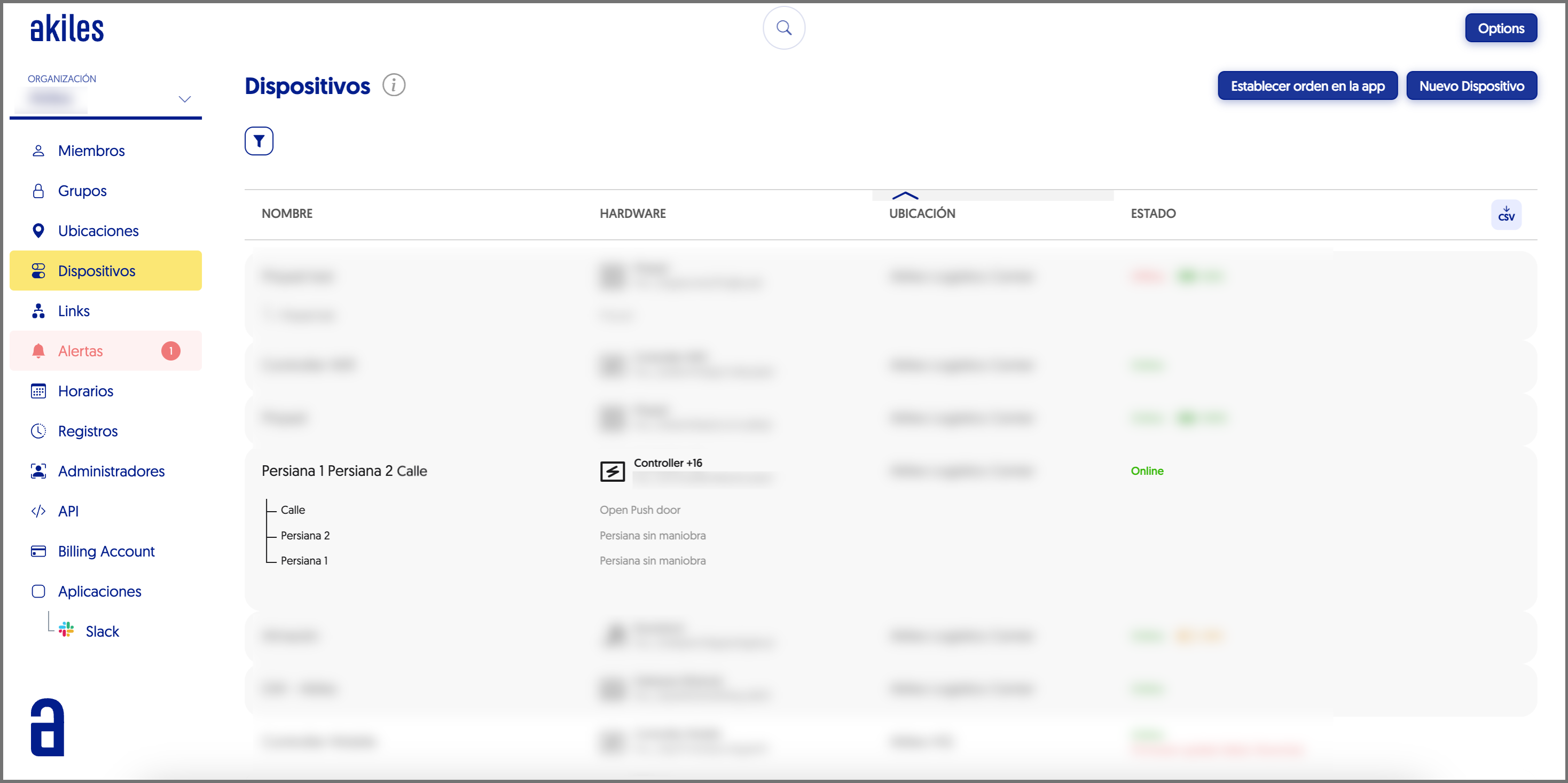
A gadget is an actionable mechanism with an Akiles device. A device can:
- Have no gadgets (like Akiles Gateway, which is limited to establishing connection with the Cloud and providing connectivity to other devices).
- Have a single gadget (like Akiles Cylinder or Akiles Roomlock, which allow opening an access point).
- Have multiple gadgets (as in the case of the Akiles Controller device, which can control multiple electrified access points).
In the example above you can see how the Akiles Controller +16 device has three gadgets (Street, Shutter 1 and Shutter 2) that are shown graphically “hanging” from the device.
Changes in the device page:
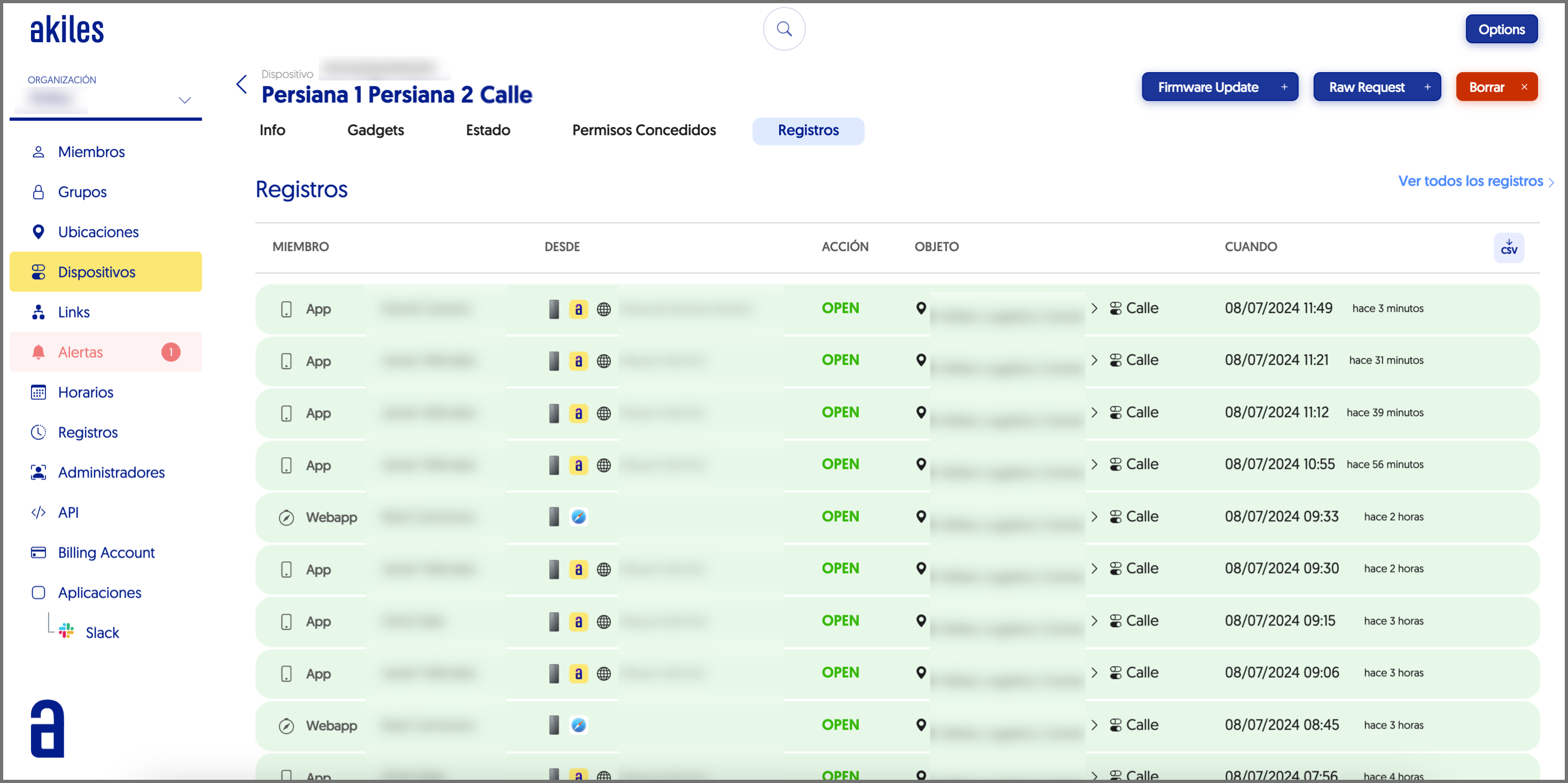
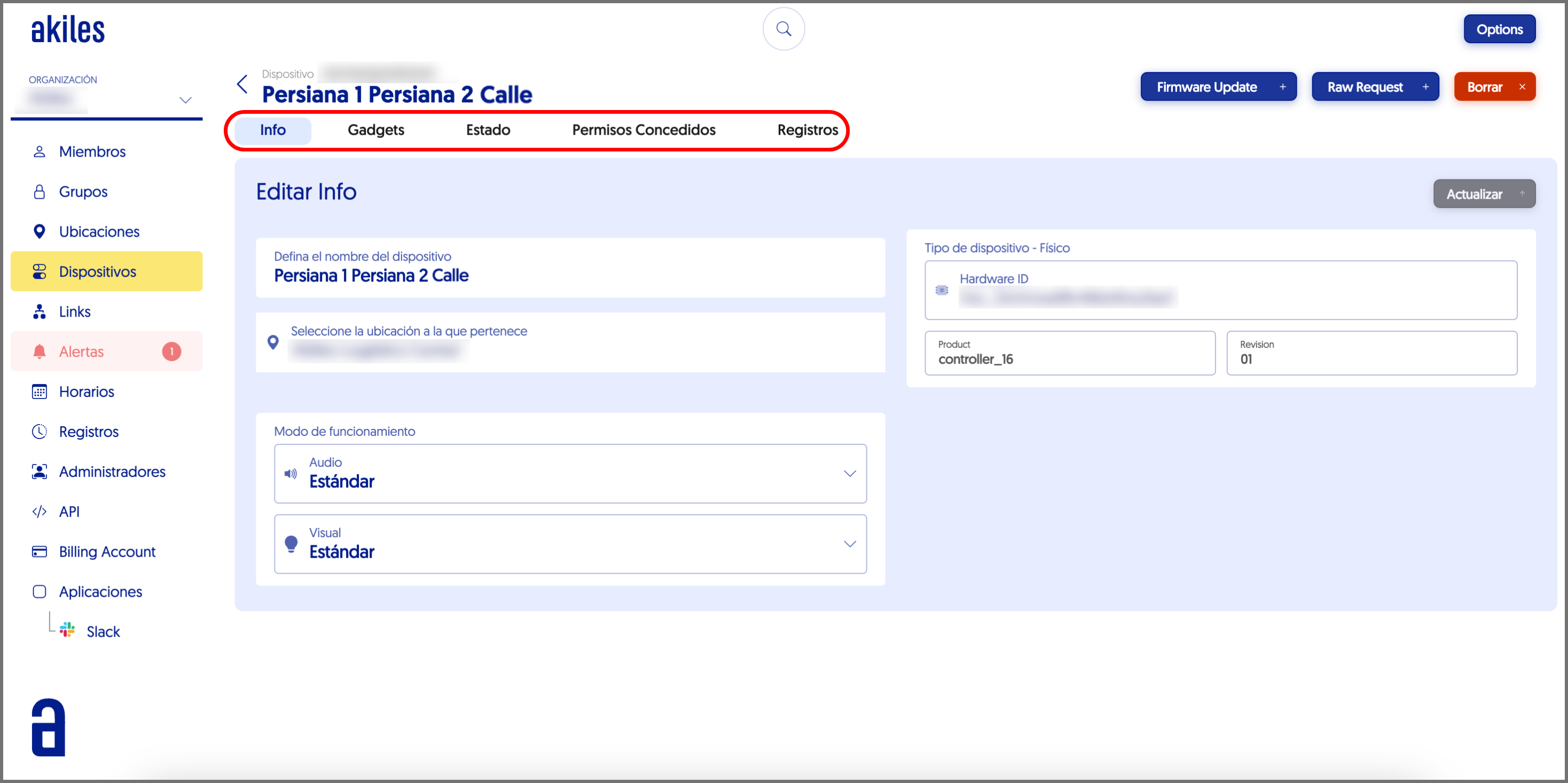
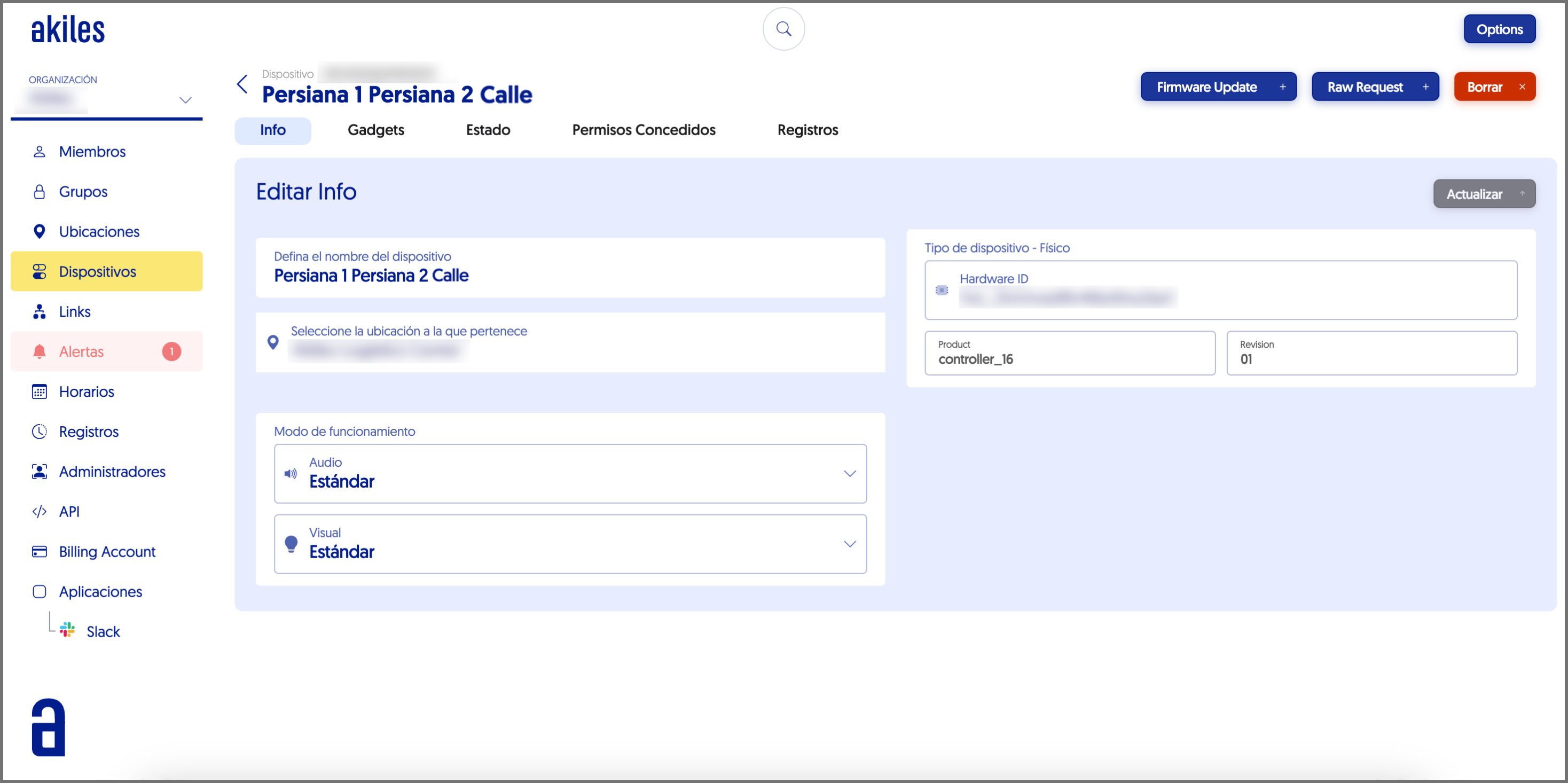
By clicking on a specific device, a device page opens that has been restructured including different tabs: Info, Gadgets (new), Status, Granted Permissions (new) and Logs.
Info
In the Info tab appears the name given to the device, the location where it is found and its hardware version. From this section you can also turn off the sound or light of the device if it has them. For more information about this last functionality, check the article [[Q2 2024] It is now possible to turn off the sound/lighting of Akiles devices.
Gadgets
From this new section you can see all the gadgets that a device controls, as well as check the available actions for each gadget.
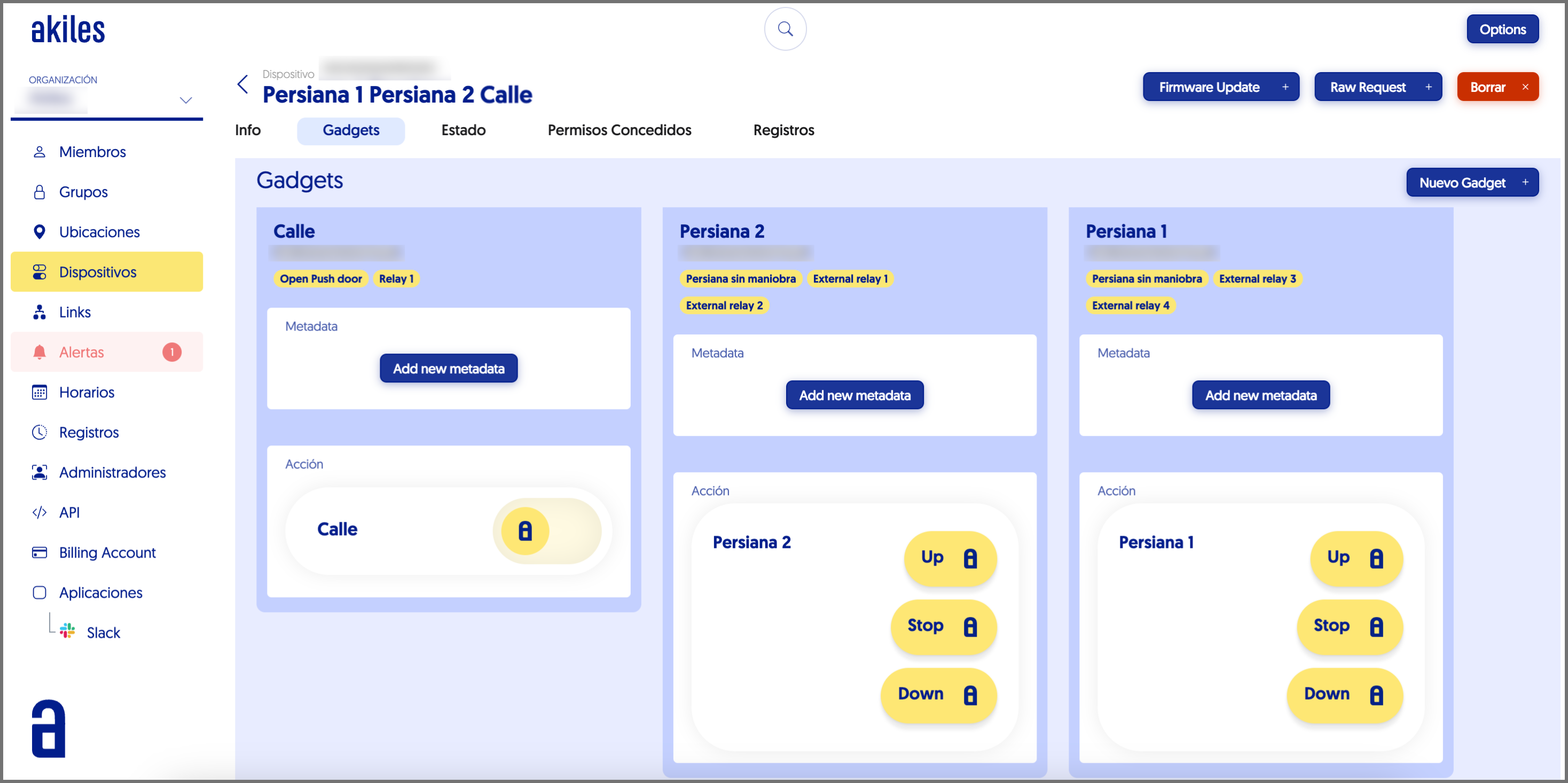
From this same section, users with Superadmin permission can create, edit or delete gadgets.
Status
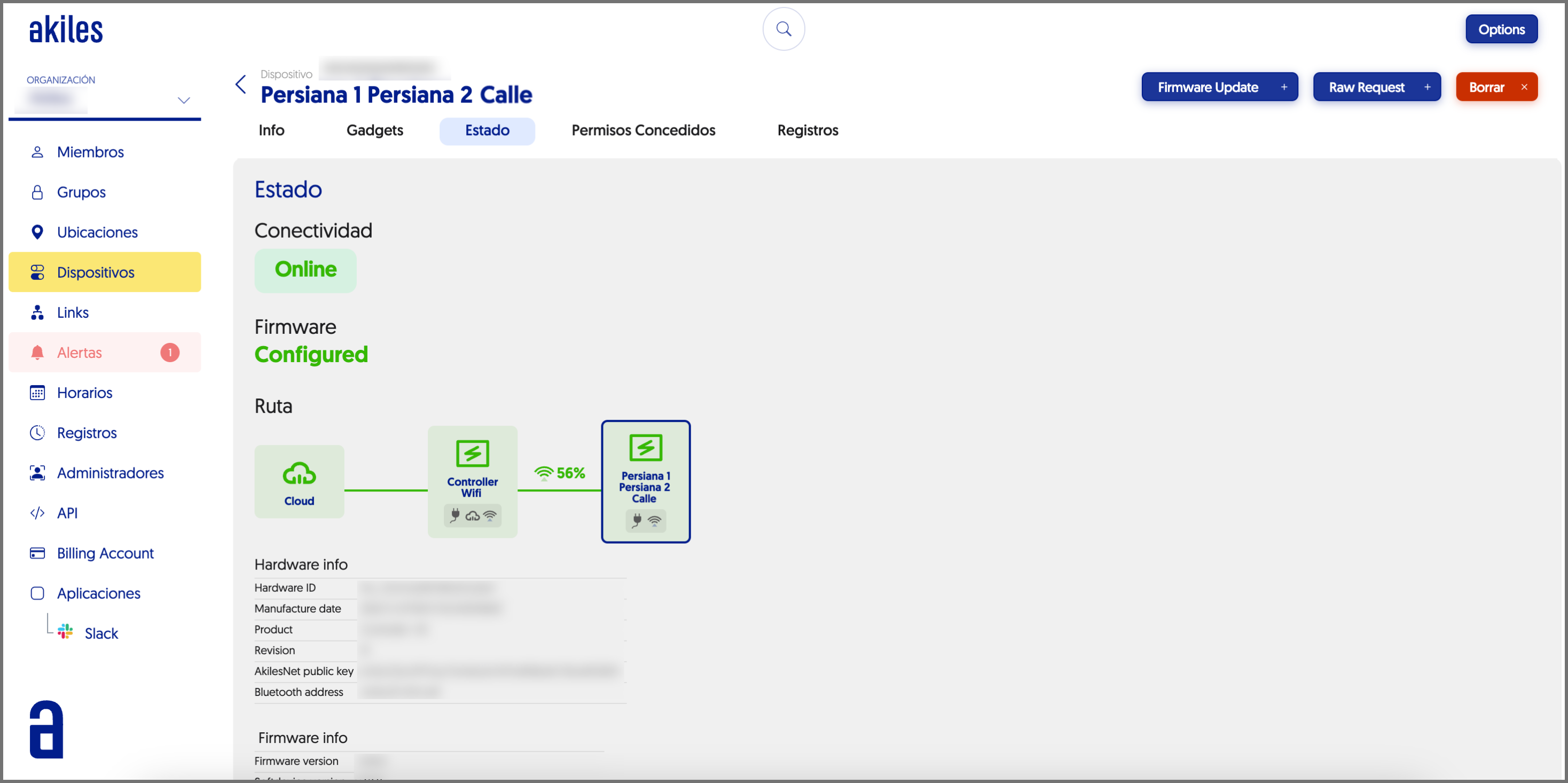
In this tab it is possible to check the Connectivity status of the device, its connection route, as well as information about the hardware and firmware.
Granted Permissions
This new section presents great potential, since from here you can check the permissions that each member has to perform actions on each device or gadget.
Not only that: at a simple glance it is also possible to check from which Group/s the permission has been granted on the device/gadget, the list of actions that each member can perform on it, as well as if they have any restriction (by geolocation, schedule or some restricted action).
Additionally, you can also check if the member has configured access methods such as personal PIN code or NFC card for the different actions they can perform on the device.
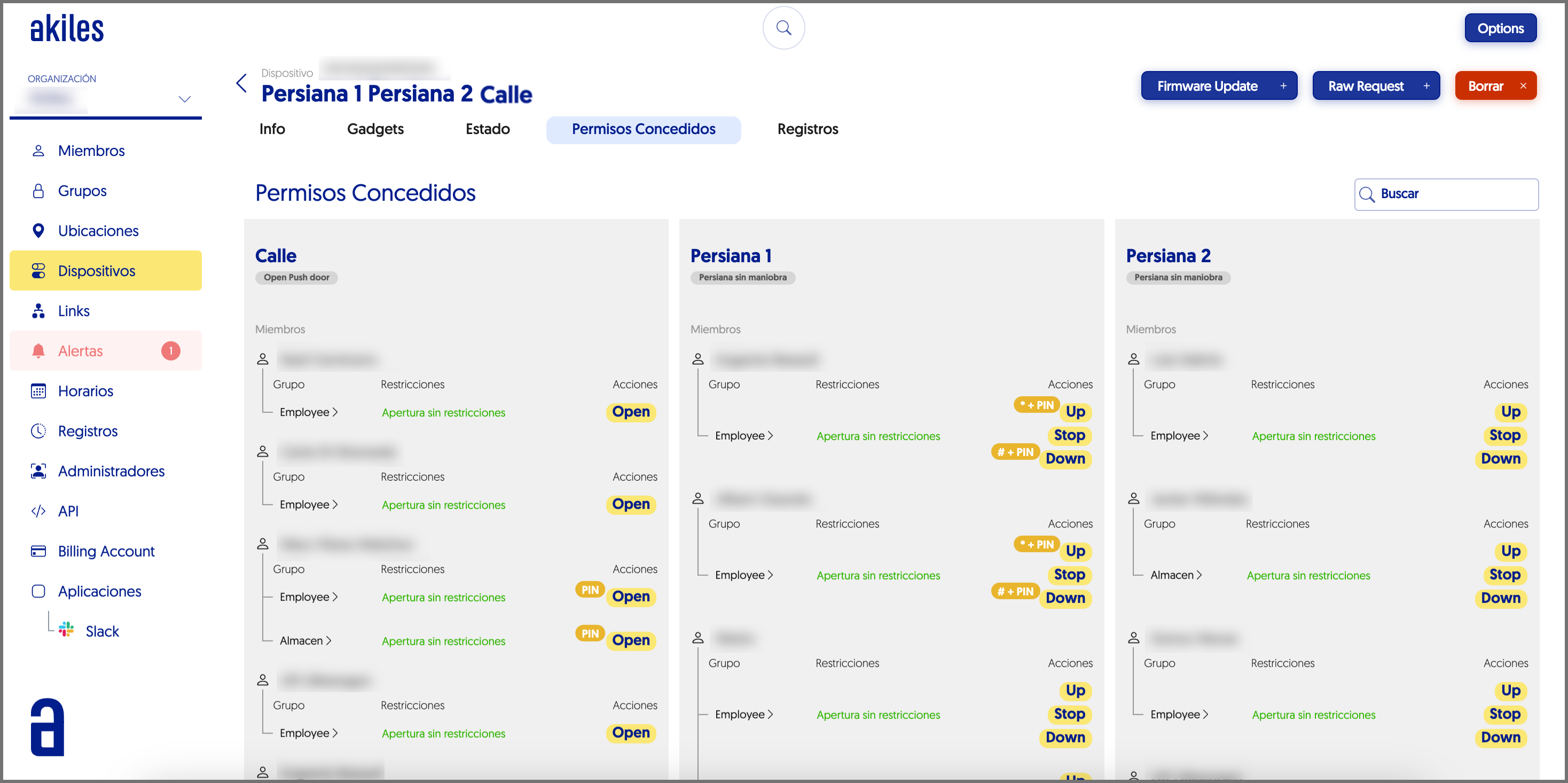
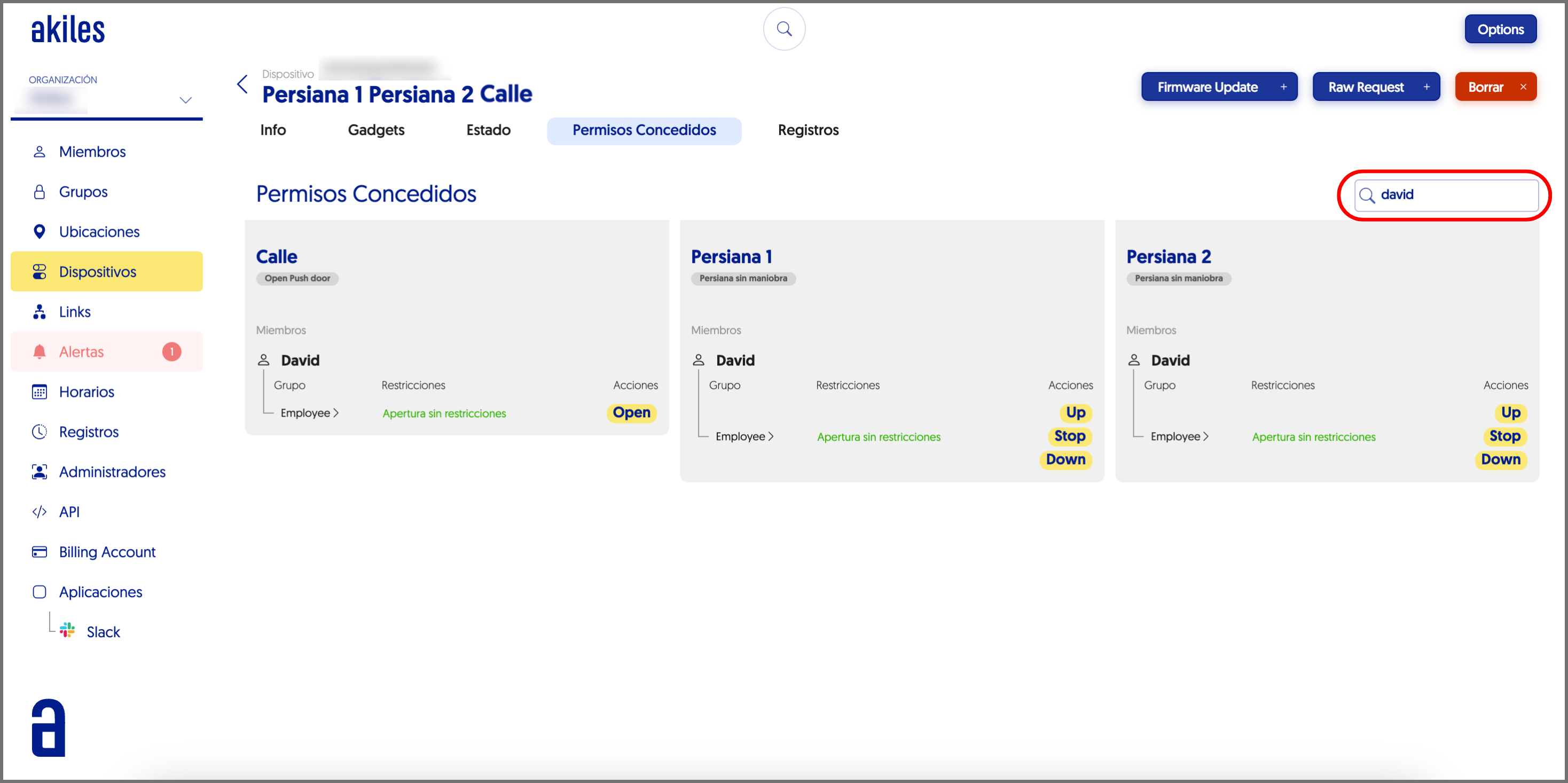
A very useful functionality in this section is the possibility to filter, from the “Search” field located in the upper right corner, by username (to see what permissions a specific user has) or by group (to see what permissions a specific group has).
This possibility can be of great help to clarify who has access to what and with which access methods.
In the example below we can see how, by filtering by “David” we get the different
gadgets that this user has permissions on.
Logs
In this tab it is possible to check all the actions that the different members of an organization have performed on a specific device/gadget (creation, opening or deletion of it).