Controller WiFi - Installation Manual
Description
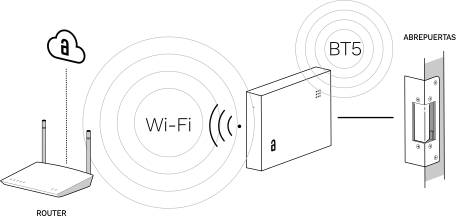
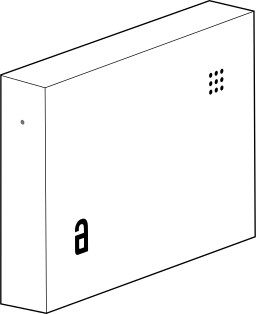
Akiles Controller WiFi is a device designed to operate on any lock and/or electrified automation system: community portals, blinds, parking lots, elevators, main entrances, sliding doors, turnstiles, swimming pools, gyms.
Greater physical security than traditional access control systems. For opening community portals, there is no need to install anything outside the home.
Compatible with traditional opening. Akiles Controller allows you to maintain traditional opening in parallel with Akiles management, whether with a physical key, biometric sensor, proximity card or numeric keypad.
Remote configuration. Akiles Controller allows remote configuration of multiple parameters that improve user experience and facilitate management by administrators. The configuration of opening routines allows that, once the community portal is opened, the elevator descends autonomously without the user having to call it from the App or from the elevator’s own button.
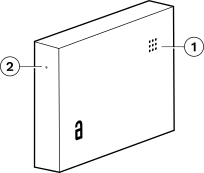
- 1. RGB LED (status)
- 2. Reset (factory values)
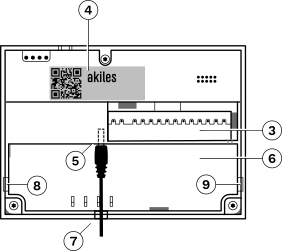
- 3. Connection pins
- 4. Label with serial number
- 5. Power jack (5.5 x 2.1 mm)
- 6. Cable housing
- 7. Cable pass-through hole
- 8. 9. Cable pass-through holes (openable)
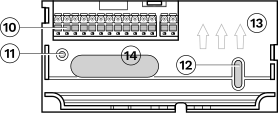
- 10. Pluggable terminals (2 + 12)
- 11. 12. Wall mounting holes
- 13. Terminal orientation (upward)
- 14. Cable pass-through hole
Technical Data
| Characteristic | Specification |
|---|---|
| Modes | Online (with Internet connection) and offline (without Internet connection) |
| Mounting | Standalone/Wall (optional) |
| Color | White RAL 9016 |
| Signaling | 1 light indicator (RGB LED) and 1 acoustic indicator (Buzzer) |
| Power Supply | 12V AC/DC & 24V DC (Jack 5.5 x 2.1 mm or terminals) |
| Switching Capacity | Relay 1: 230 V AC (max. 5 A). Door opener connection. Relays 2 and 3: 30 V DC (max 2A). Intercom connection. |
| Connectivity | BT (5.0, 4.x) Wi-Fi (IEEE 802.11 b/g/n) |
| Firmware Updates | Over-the-Air (OTA) |
| Material | Polished ABS V0 |
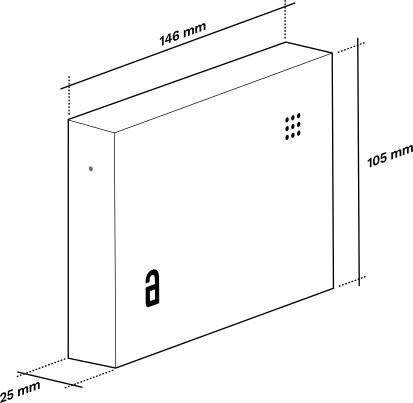
| Dimensions | 146 x 104 x 25 mm |
| Temperature Range | 0..+45ºC |
| IP Rating | IP20 (indoor use only) |
| Terminal Capacity | 0.2 < mm² < 2.5, push-in terminals (no screw) |
Light Indicator Signals (RGB LED)
| Color | Blinking | Meaning |
|---|---|---|
| Blue | No | Started, everything OK |
| Blue | Fast | Updating configuration |
| Blue | Slow | Updating firmware |
| Green | — | Opening performed correctly |
| Red | No | Restart |
| Red | Fast | Resetting factory values |
| Yellow | 1 | No connection received from gateway |
| Yellow | 2 | No connection with Controllers/ Cylinders/ Roomlocks |
| Purple | 1 | Wi-Fi network not found or incorrect password |
| Purple | 2 | Wi-Fi ok, DHCP error |
| Purple | 3 | Wi-Fi ok, DHCP ok, DNS error |
| Purple | 4 | Wi-Fi ok, DHCP ok, DNS ok, connection error |
Dimensions
Terminal Nomenclature
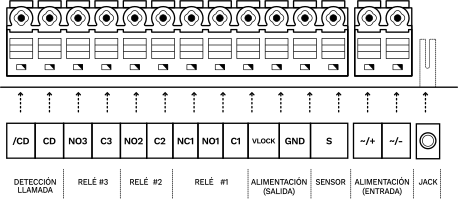
| Terminal | Description |
|---|---|
| NO1 | Normally open contact of relay 1 |
| NC1 | Normally closed contact of relay 1 |
| C1 | Common contact of relay 1 |
| C2 | Common contact of relay 2 |
| NO2 | Normally open contact of relay 2 |
| C3 | Common contact of relay 3 |
| NO3 | Normally open contact of relay 3 |
| CD | Call detection (positive) |
| /CD | Call detection (negative) |
| ~/+, ~/- | Power supply (input). The device can be powered either through these terminals or through the power jack. |
| S | Sensor input (connect between S and GND). Connect a magnetic sensor to detect door status or a push button/switch for additional functions. |
| GND | Ground |
| VLOCK | Power output (same voltage as the ~ / + terminal and the positive of the jack) |
Installation Diagram
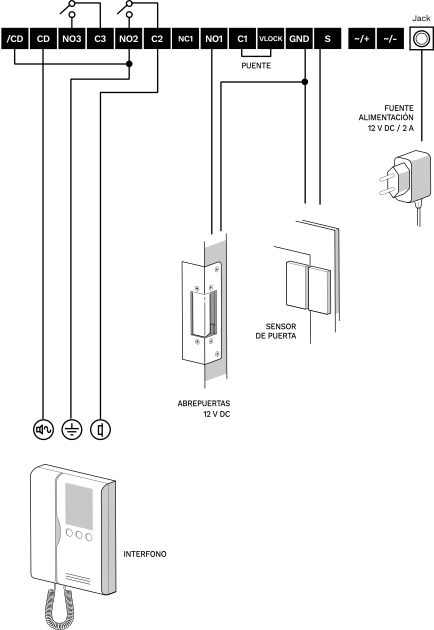
The diagram shows the typical connection of the Controller WiFi with:
- 12 V DC / 2 A power supply
- Intercom (connection via call detection)
- 12 V DC door opener
- Door sensor (optional)
- Bridge between terminals C1 and VLOCK
Considerations Before Installation
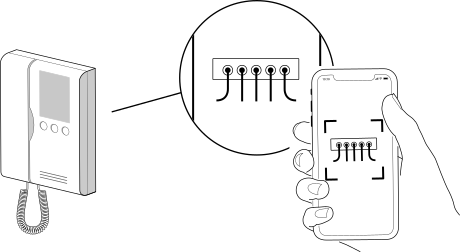
Before handling the intercom connections, it is recommended to take a photograph of the wiring at its corresponding connection terminals. It may be useful later.
To have an adequate signal level, the maximum recommended distance between the wireless router and the Controller WiFi is 15 m. Keep in mind that walls and large objects in between can affect the range of communication.
If you are going to pair 2 devices to communicate via Bluetooth, the separation between them should not exceed 25 m on the same floor, nor should the devices be separated by more than 2 floors, in order to have good wireless coverage.
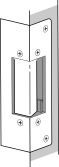
The cable section and the amperage of the power supply must be sized according to the consumption of the door opener (consult the manufacturer’s data sheet for the door opener model used).
Once the installation has been registered on Akiles servers (via the administration panel) and if the configuration is correct, the system should work perfectly after powering it on.
On a newly installed device, wait one minute after startup before testing the door opening.
It is recommended that the installation of this Akiles access control system be carried out by an electrical installer.
Device Installation
Before handling the intercom connections, it is recommended to take a photograph of the wiring at its corresponding connection terminals. It may be useful later.
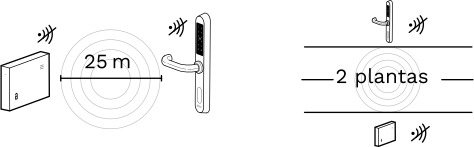
If you are going to pair 2 devices to communicate via Bluetooth, the separation between them should not exceed 25 m on the same floor, nor should the devices be separated by more than 2 floors, in order to have good wireless coverage.
The cable section and the amperage of the power supply must be sized according to the consumption of the door opener (consult the manufacturer’s data sheet for the door opener model used).
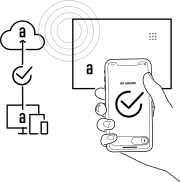
Once the installation has been registered on Akiles servers (via the administration panel) and if the configuration is correct, the system should work perfectly after powering it on.
On a newly installed device, wait one minute after startup to test the door opening.
It is recommended that the installation of this Akiles access control system be carried out by an electrical installer.
Device Installation
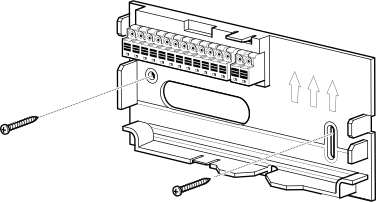
- Fix the wall plate in the desired location. Ideally close to the intercom and the door frame, on the lock side. The power supply connection must be possible.
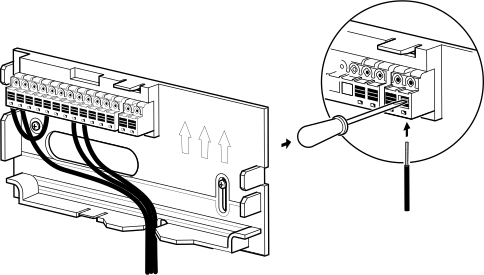
- Make the appropriate connections on the terminals of the wall plate according to the installation diagrams provided.
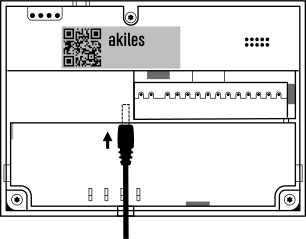
- Connect power supply.
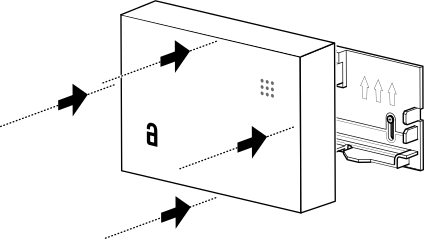
- Insert the device into the wall plate until both fit perfectly.
Wi-Fi Network Configuration
The procedure to configure the Wi-Fi network on the device (previously registered in the administration panel) is as follows:
1. Use your mobile phone to create an access point (hotspot) with the name “AkilesSetup” and password “GoToTheCloud”.
Activate the Share Internet via Wi-Fi option on your phone (the specific location of this setting in your phone’s settings depends on the operating system version and the manufacturer’s customization layer).
Android Example:
Go to Settings > Networks and Internet > Activate “Share Internet” > Click on “Share Internet” > Set access point name as “AkilesSetup” > Set access point password as “GoToTheCloud”.
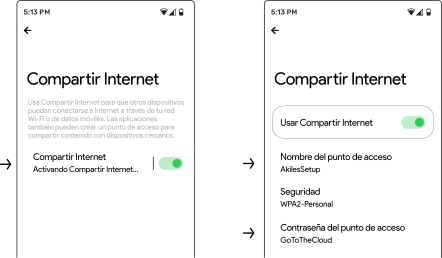
iOS Example:
- Go to Settings > General > About > Name > Change to “AkilesSetup”
- Go to Settings > Personal Hotspot > Activate “Allow Others to Connect” > Set Wi-Fi Password as “GoToTheCloud”
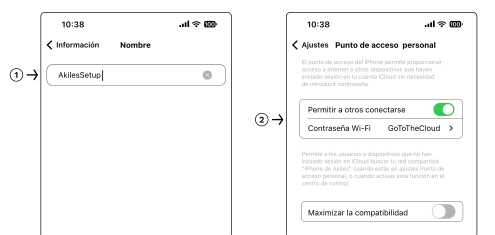
Once this process is complete, the Akiles Controller WiFi will connect by default to the network provided by your phone.
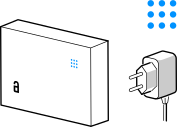
2. Subsequently, when powering on the Akiles Controller WiFi, the status LED should display blue (solid, without blinking). If not, review and repeat the previous step.
3. In the administration panel, in your organization, go to the Locations tab and select the device location. Click on the “WiFi Networks” button.
4. Enter the name (network identifier or SSID) and password of the Wi-Fi network of the space. To finish, click the “Create” button.
5. Wait for the Controller WiFi to appear in the Devices tab of the administration panel as configured (in Online status, not as “Configuration pending”).
6. Deactivate the access point on your mobile phone (stop sharing Internet).
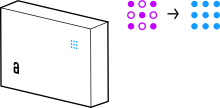
7. The status LED of the Akiles Controller WiFi should display purple, blinking for a few seconds while connecting to the Wi-Fi network. Once connected, the LED will remain blue and the device will be ready to operate.
For security reasons, once connected to the Wi-Fi network of the space, the device will no longer connect to an access point with default credentials (“AkilesSetup” / “GoToTheCloud”). To do this, you would have to force a factory reset of the device and repeat the process described above.
If you force a factory reset of your wireless router or change the password of its Wi-Fi network, the Controller WiFi will not be able to connect to the Akiles Cloud. For this reason, you must anticipate any changes and enter the new credentials (SSID and password) in the administration panel (Locations tab → Device location → Wi-Fi Networks).
Device Operation
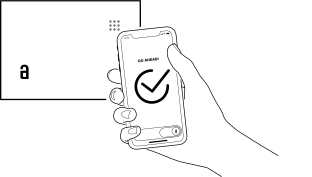
App: The app allows you to open remotely via a smartphone with internet connection, or locally via BT4 / BT5 without internet connection.
Information on the Product’s Wireless Features
BT5/BT4 Frequencies: 2400–2483.5 MHz (max 8 dBm)
Wi-Fi Frequencies: 2400–2483.5 MHz (max 18 dBm)
Radio Frequency Exposure Information (Maximum Permitted Exposure)
This device complies with EU requirements on limiting public exposure to electromagnetic fields in order to protect health. To comply with radio frequency exposure requirements, the equipment must be used at a minimum distance of 20 cm from the user.
Regulations and Certifications


The WEEE symbol (Waste Electrical and Electronic Equipment) indicates that this device and batteries (if incorporated) should not be disposed of with other household waste.
When the product reaches the end of its useful life, take it to a waste collection point in your area for safe disposal or recycling.
This product complies with the provisions of the European Radio Equipment Directive (2014/53/EU).
This product also complies with the essential requirements of Directive 2011/65/EU (RoHS 2), 2012/19/EU (WEEE) and EU regulation No. 1907/2006 (REACH).